
One browser interface, on every robot it ships with.
The MYBOTSHOP / QUADRUPED webserver runs on the robot's own computer and is opened from any browser on the robot's network — no app to install. A robot dog, a mobile manipulator and a humanoid are operated the same way; what the pages control follows the robot underneath.
In the order you meet it
Ten steps, from opening the browser to reading the manual on the robot. The screenshots are taken on the G1; the videos show the same interface on the Go2, the Ridgeback and the H2.
Login & Dashboard
Connect to the robot's network, open the robot's address on port 9000 and sign in. The Dashboard is the first page after login.
Login
A username and password gate before any access. Address and default login differ per robot — they are listed on each robot's page.
Dashboard: who is this robot
Robot identity, software versions and network status, next to a live 3D preview of the robot posed from its own joint state.
Cable, WiFi or handheld
The same webserver is reachable over Ethernet or the robot's onboard WiFi, from a laptop, a tablet or a Steamdeck.
Cockpit
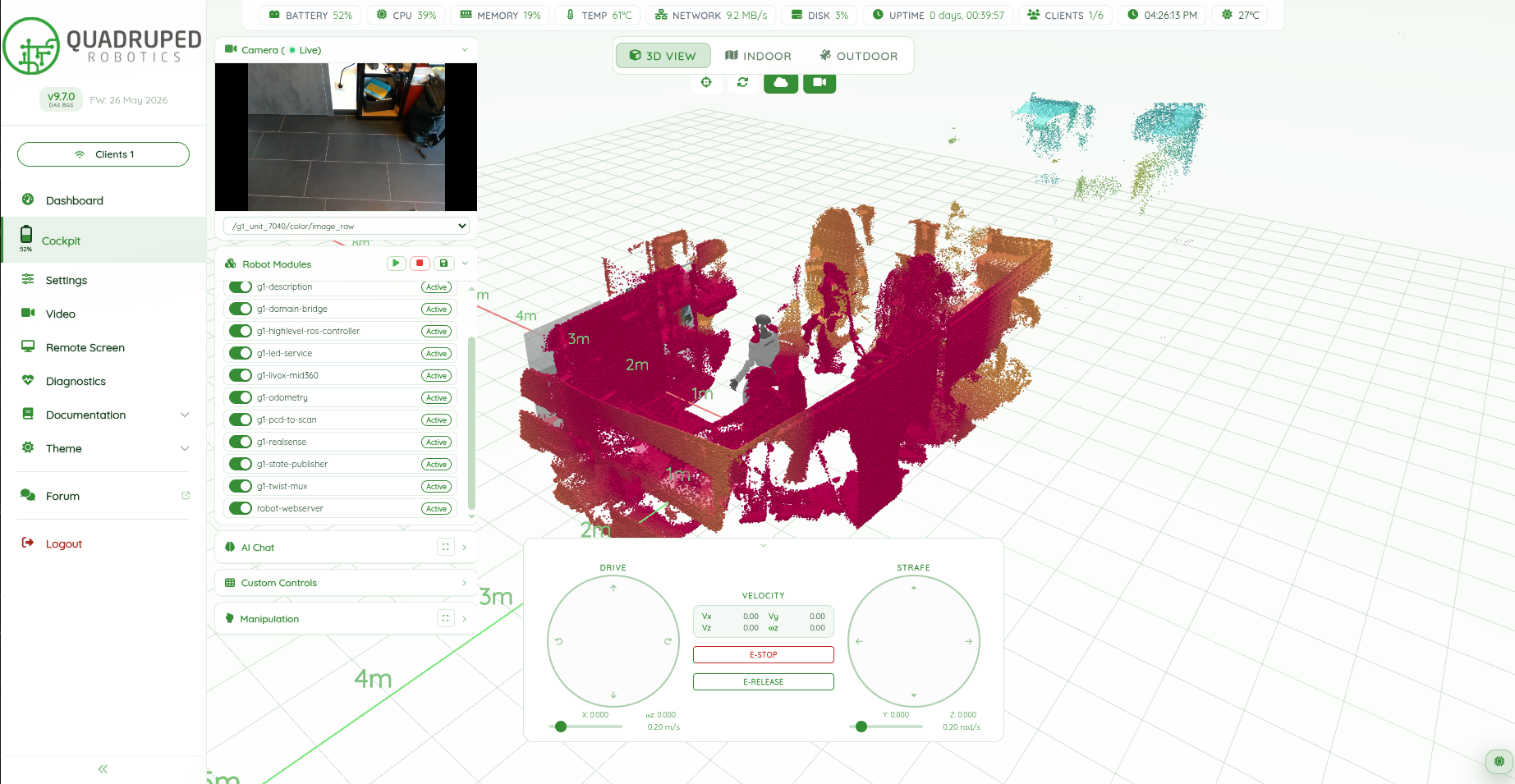
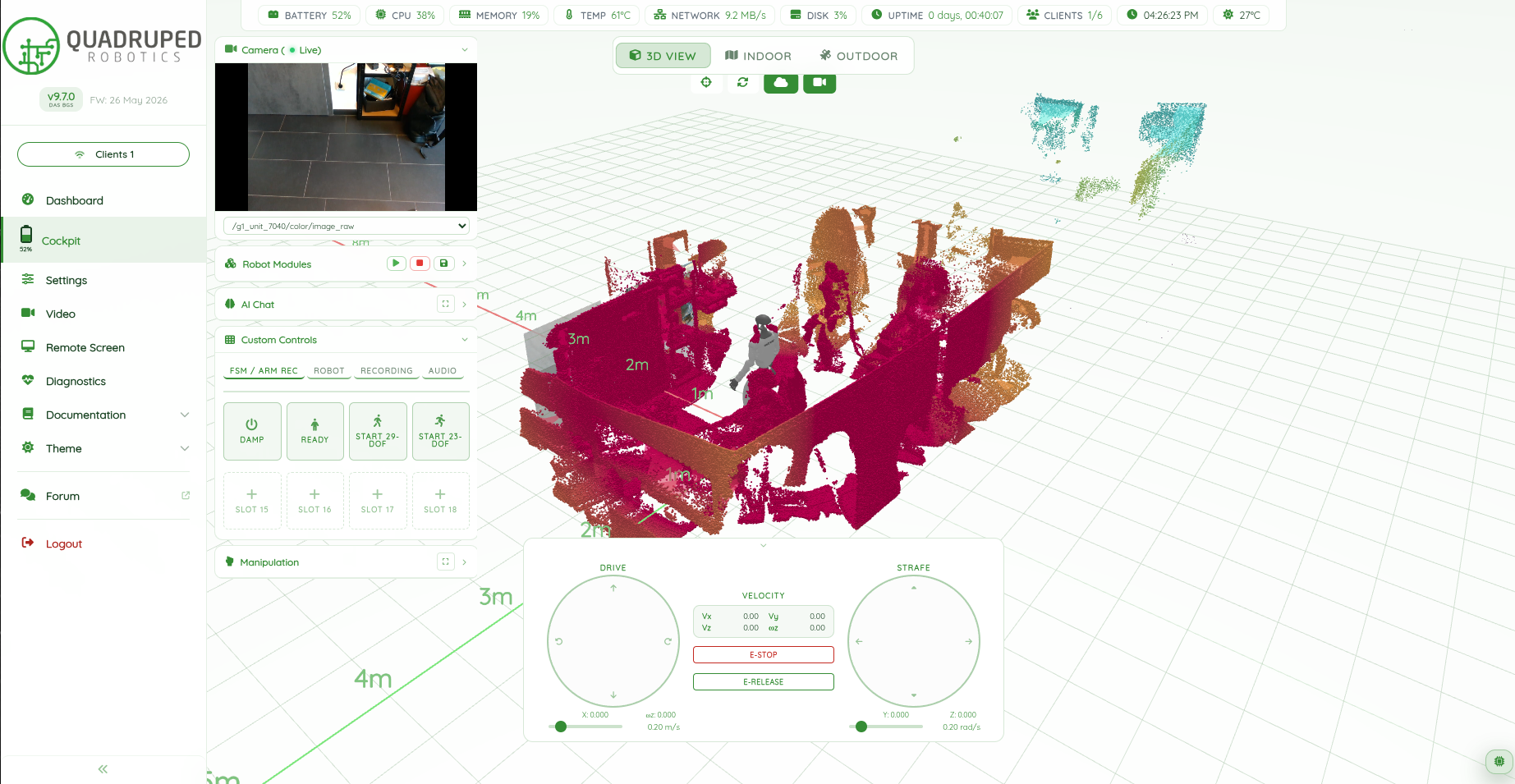
The main piloting view, and the page an operator spends most time on. Navigation, Manipulation and AI Chat in the next steps all live inside it.
See
- A 3D scene with the robot and the live LiDAR point cloud, switchable to an indoor or an outdoor map
- Live camera tile in the corner
- Battery, CPU, memory, temperature, network and uptime in the header strip
Drive
- Drive and strafe pads with a speed limit slider
- E-STOP and E-RELEASE always in reach
Act
- Custom Controls hold the robot's own actions — on the G1 the Damp, Ready and Start tiles
- Fold-out panels for robot modules, AI Chat and Manipulation
Navigation
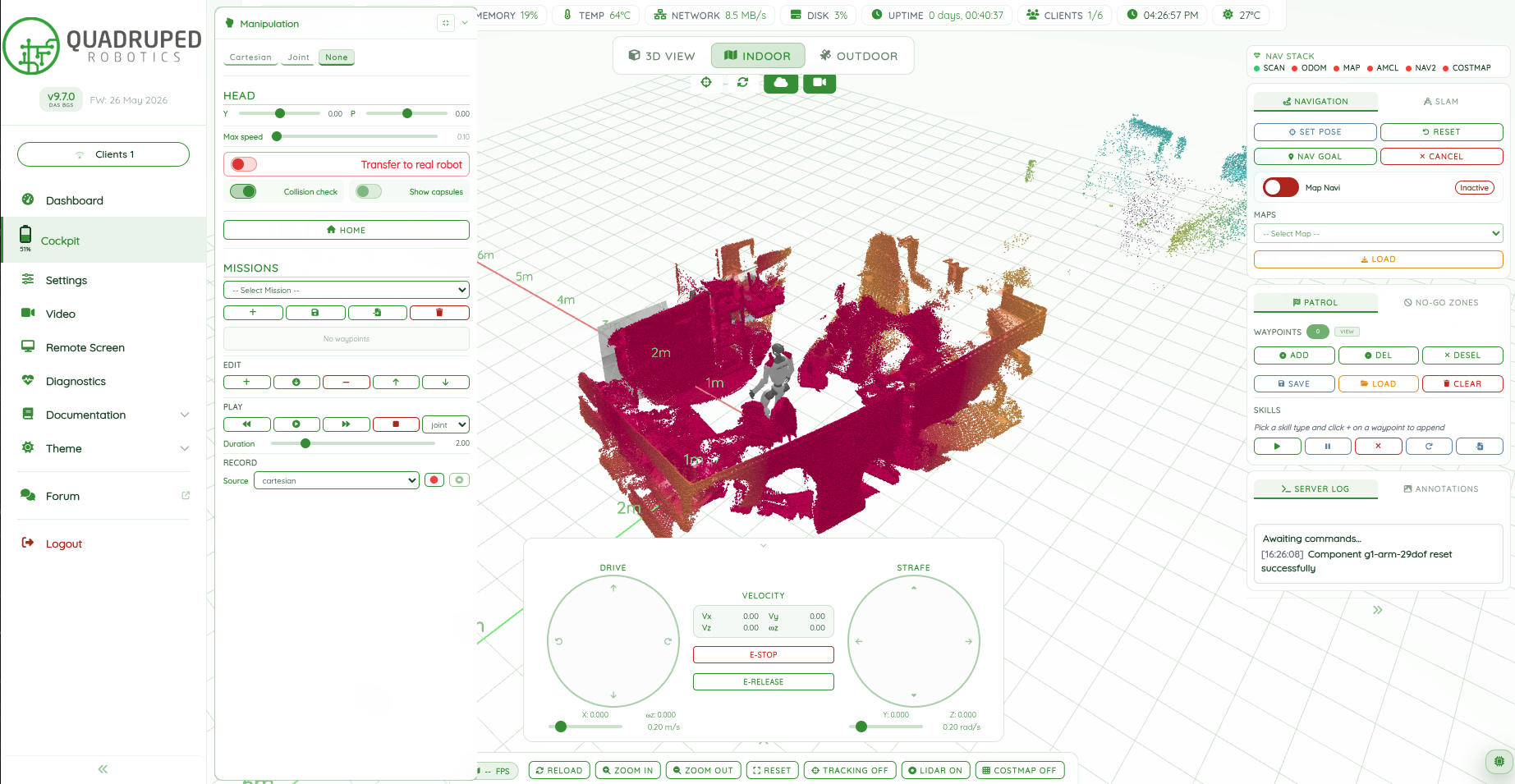
Switch the Cockpit to the indoor map. Mapping and autonomous driving run from here whether the robot has four legs, two legs or four mecanum wheels.
Map
- SLAM tab to map a new space, then save and load maps
Go
- Set the robot's pose on the map, then send a navigation goal with a click
- Cancel at any time; E-STOP stays on the page
Patrol
- Place waypoints on the map and save them as a patrol
- Attach a skill to a waypoint, so the robot does something when it arrives
- Draw no-go zones the robot must stay out of
What it is used for
Set the route up once in the browser; day-to-day operation afterwards needs no trained personnel. The pattern applies to any LiDAR-equipped robot in the fleet.
A Go2 walks an autonomous route between waypoints with live LiDAR obstacle avoidance. The webserver is shown bottom right.
- Inspection rounds and site patrols on a saved map
- One button press per waypoint once the route exists
- Emergency stop brings the robot to a controlled, gentle sit
The omnidirectional Ridgeback drives through a warehouse on a saved map. The onboard camera feed is shown bottom right.
- Delivery-style runs between stations
- Live map, planned path and camera feed in one view
- Moves sideways on 4 mecanum wheels where aisles are tight
Manipulation
Open the Manipulation panel in the Cockpit. Every robot with an arm is operated the same way here — a humanoid, a Go2 with an Open Manipulator, or a Ridgeback with its arms.
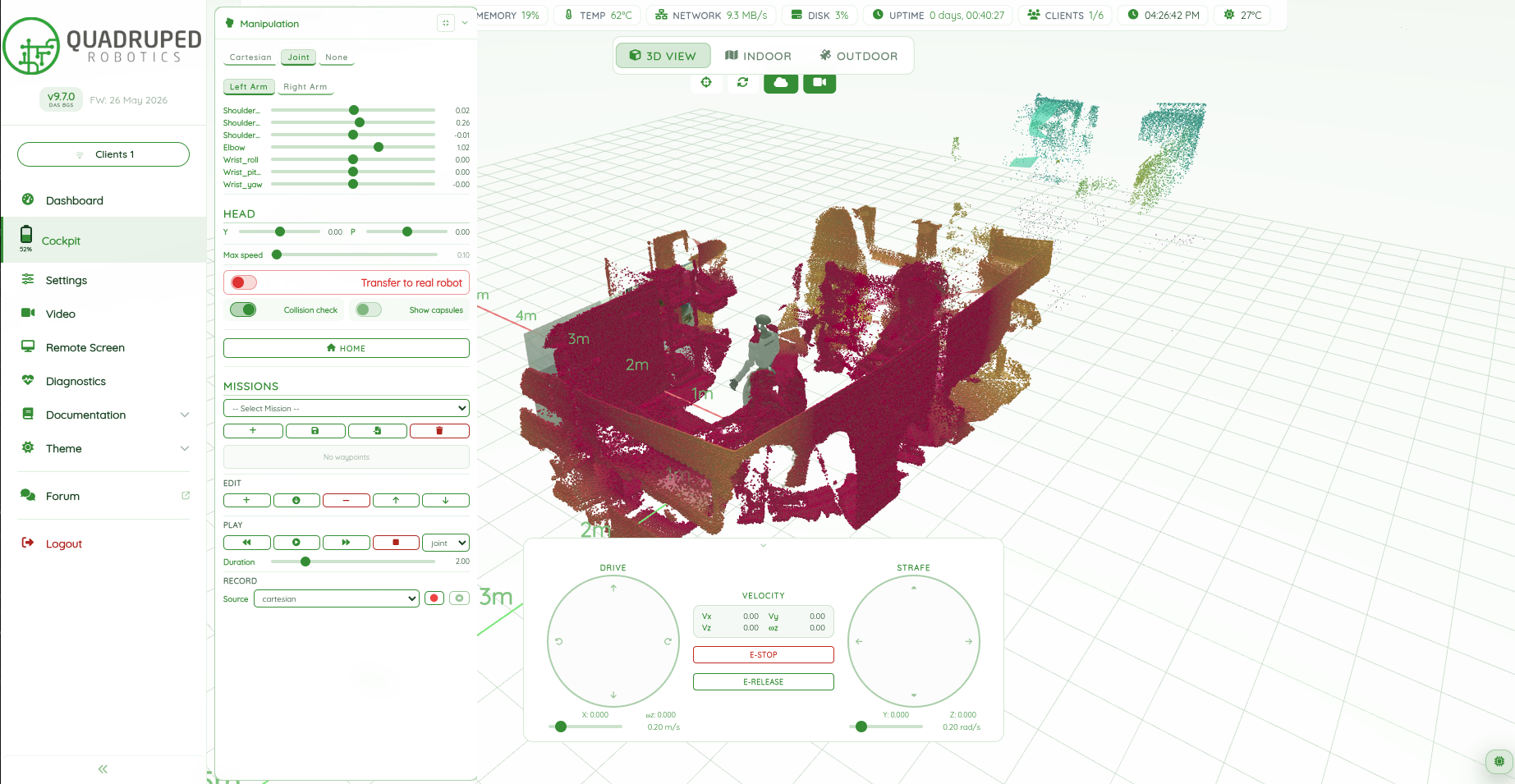
One slider per arm joint, with a preview in the 3D view before anything moves.
- “Transfer to real robot” gate and collision check before any motion runs live
- Home button to return the arms to a safe pose
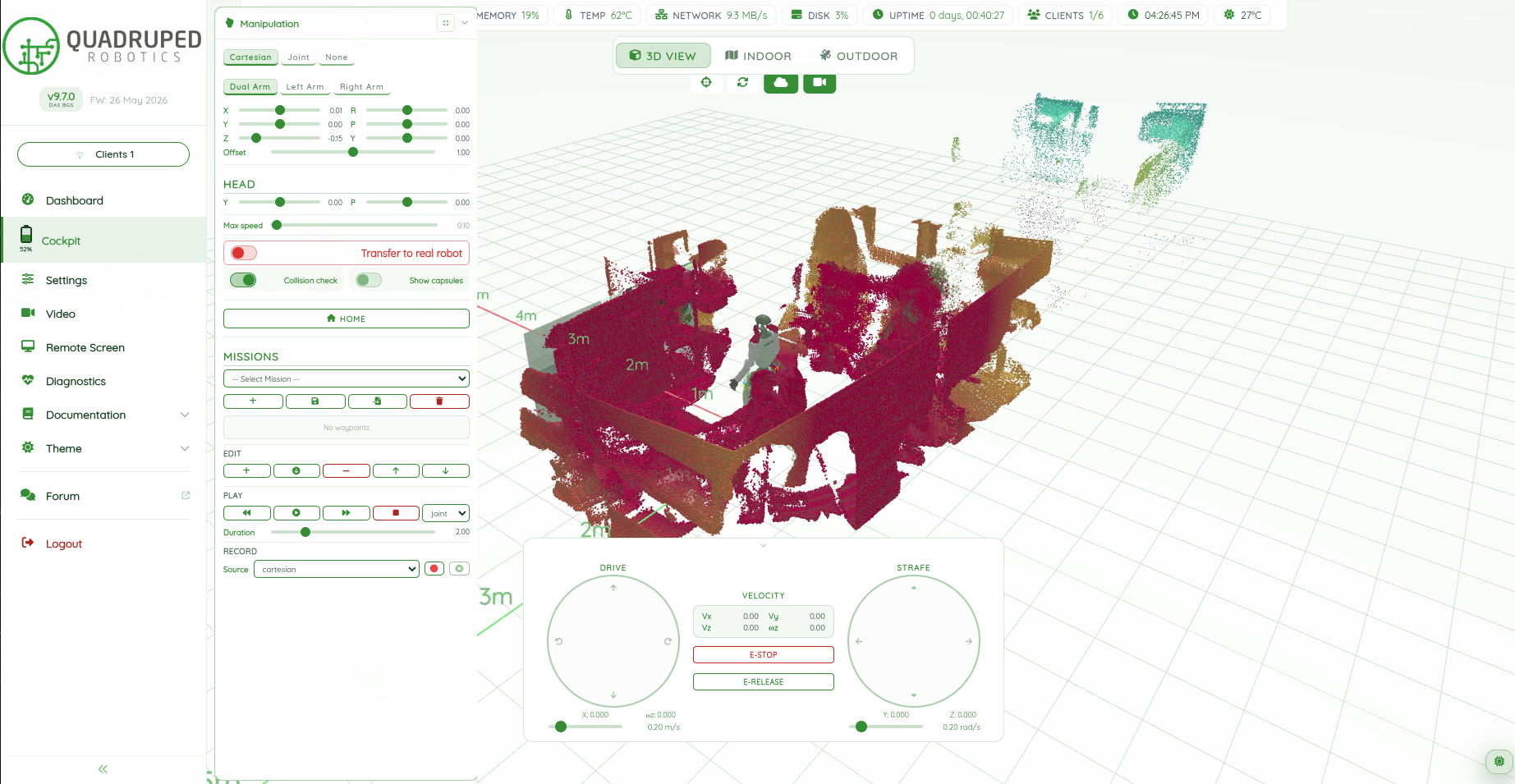
Move the hand to a position in space and let the robot plan the joints — one arm or both together.
- Record arm motions as a mission, edit single waypoints, play them back
- Joint-space or Cartesian playback
Three ways to lead the arms
Any robot with an arm can in principle be led in each of these ways. Which one makes sense depends on the robot and the task — ask us what is available for your platform.
Sliders & path planning
Directly in the webserver, as shown above. Best for setting up poses, recording repeatable missions and autonomous tasks.
Meta Quest
The operator leads the arms with a VR headset and its hand controllers. Best for quick teleoperation without wearing hardware on the body.
Foxtec exo suit
The operator wears leader arms and the robot mirrors every joint. Best for dexterous two-arm work and collecting demonstrations.
What it is used for
Manipulation and autonomous tasks with humanoids: teach a motion once, then replay it, or let an operator do the task through the robot.
An operator in an exo suit leads the full-size H2: arm and hand movements are reproduced by the robot to move a bin from the table into a box. The webserver is on the screen behind.
A G1-D picks up a markerless object detected by a YOLO network, drives to the place location and sets it down, all started from the webserver. The webserver is shown bottom right.
- The table is found live by the depth camera, so the object can be picked up from anywhere
- The place location is set in a map built beforehand with SLAM
AI Chat
Open the AI Chat panel in the Cockpit and talk to the robot, by text or by voice, without leaving the 3D view.
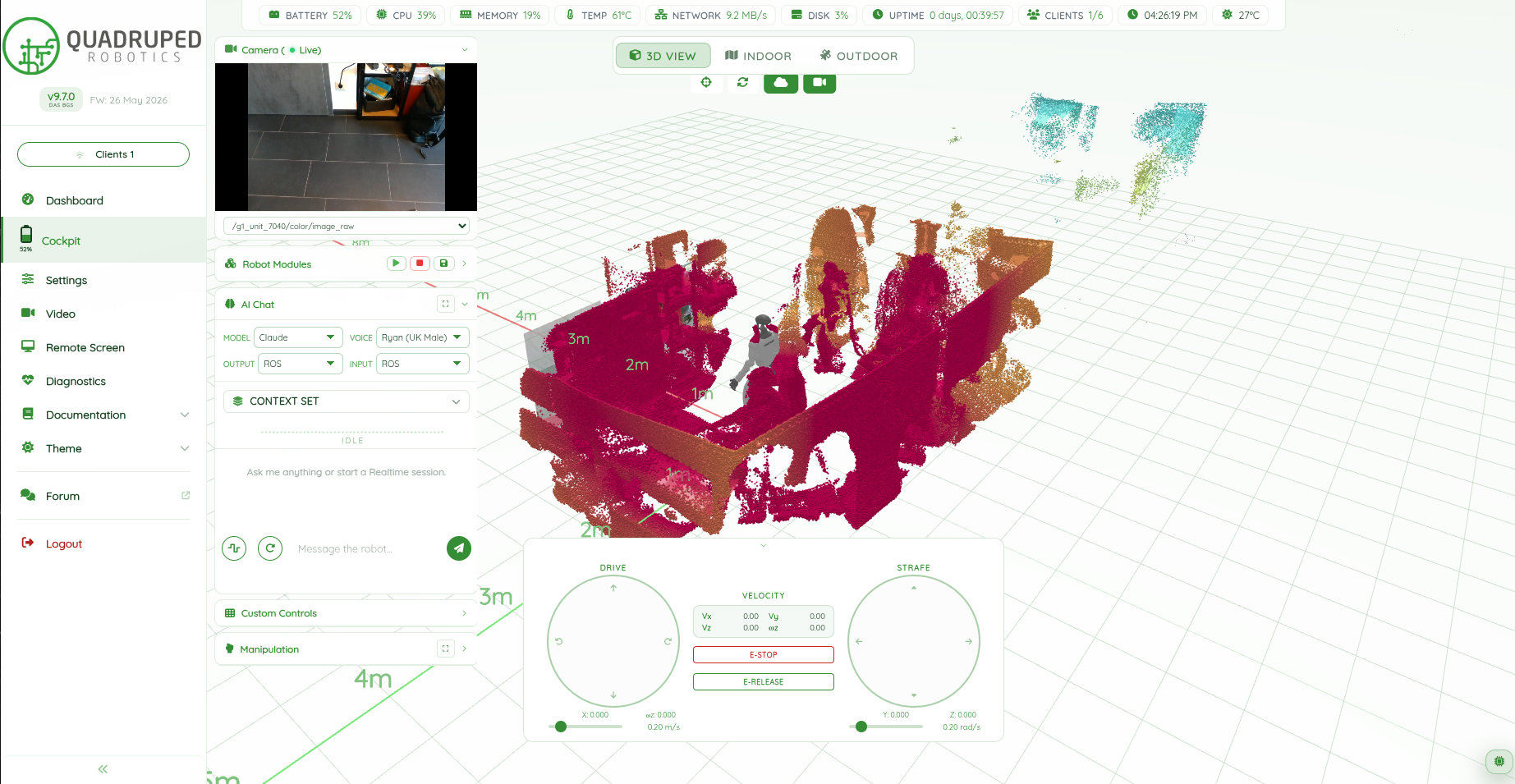
Ask
- Type a message or start a realtime voice session
- The assistant is grounded in the current 3D scene
Act
- The assistant can use the robot's tools, so a request can end in a motion and not only in an answer
- It shares the screen with the Manipulation panel, for narrated demos or debugging a mission live
Set up
- Choose the model and the voice
- Route audio input and output to the robot or to the browser
Video
A page for the robot's cameras alone, when the picture matters more than the map.
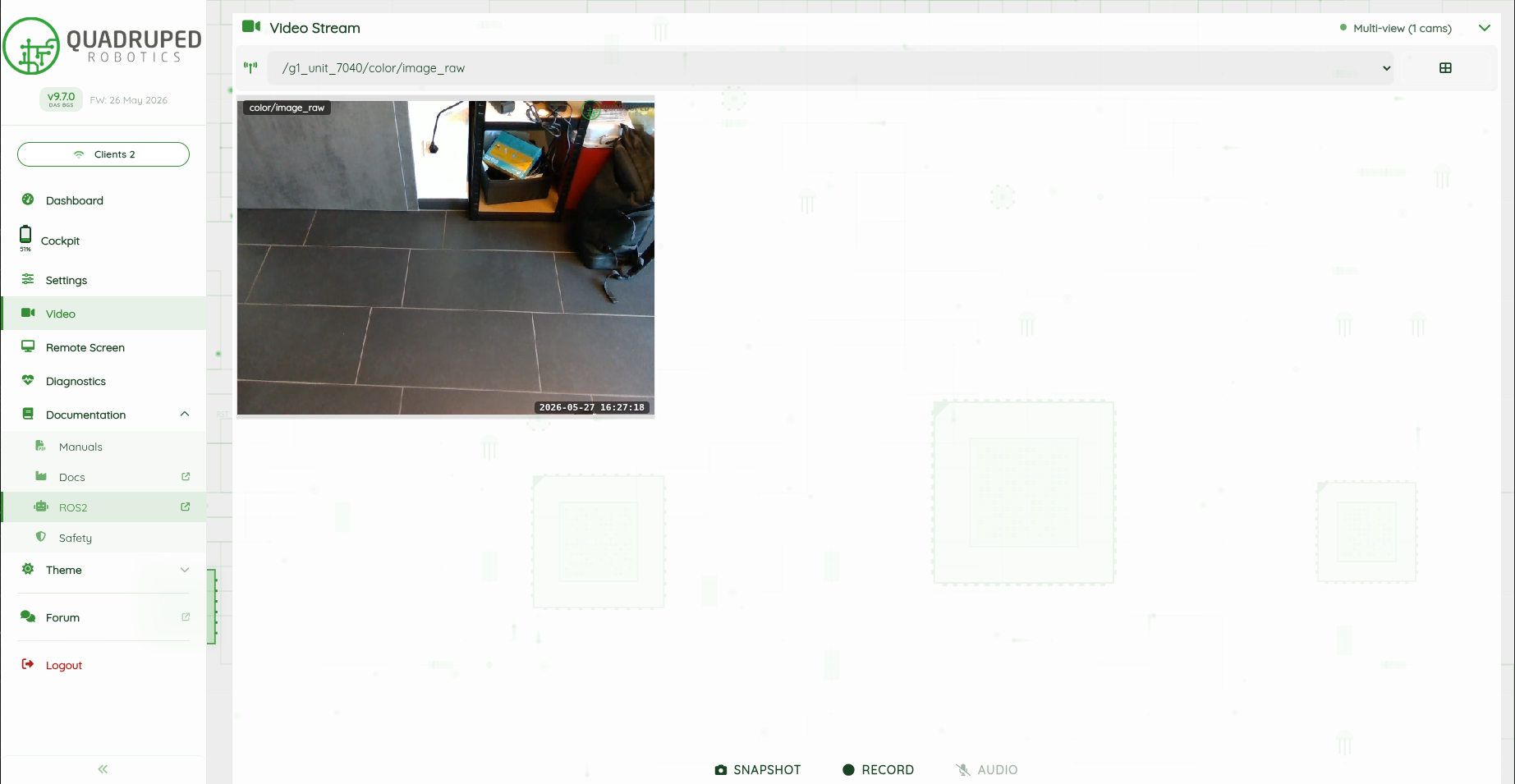
Watch
- Pick any camera the robot publishes
- Multi-view for several cameras side by side
Keep
- Snapshot and record buttons in the toolbar
Remote Screen
The desktop of the robot's onboard computer, in the browser.
Full desktop over VNC
Full host access without plugging in a screen or a second keyboard, and without a separate VNC client.
For everything else
RViz, rqt, MoveIt or any tool that has no dedicated webserver panel yet.
For developers
Day-to-day operation does not need it. It is the fallback when something has to be debugged on the robot itself.
Settings
What runs on the robot, and how the webserver is configured for it.
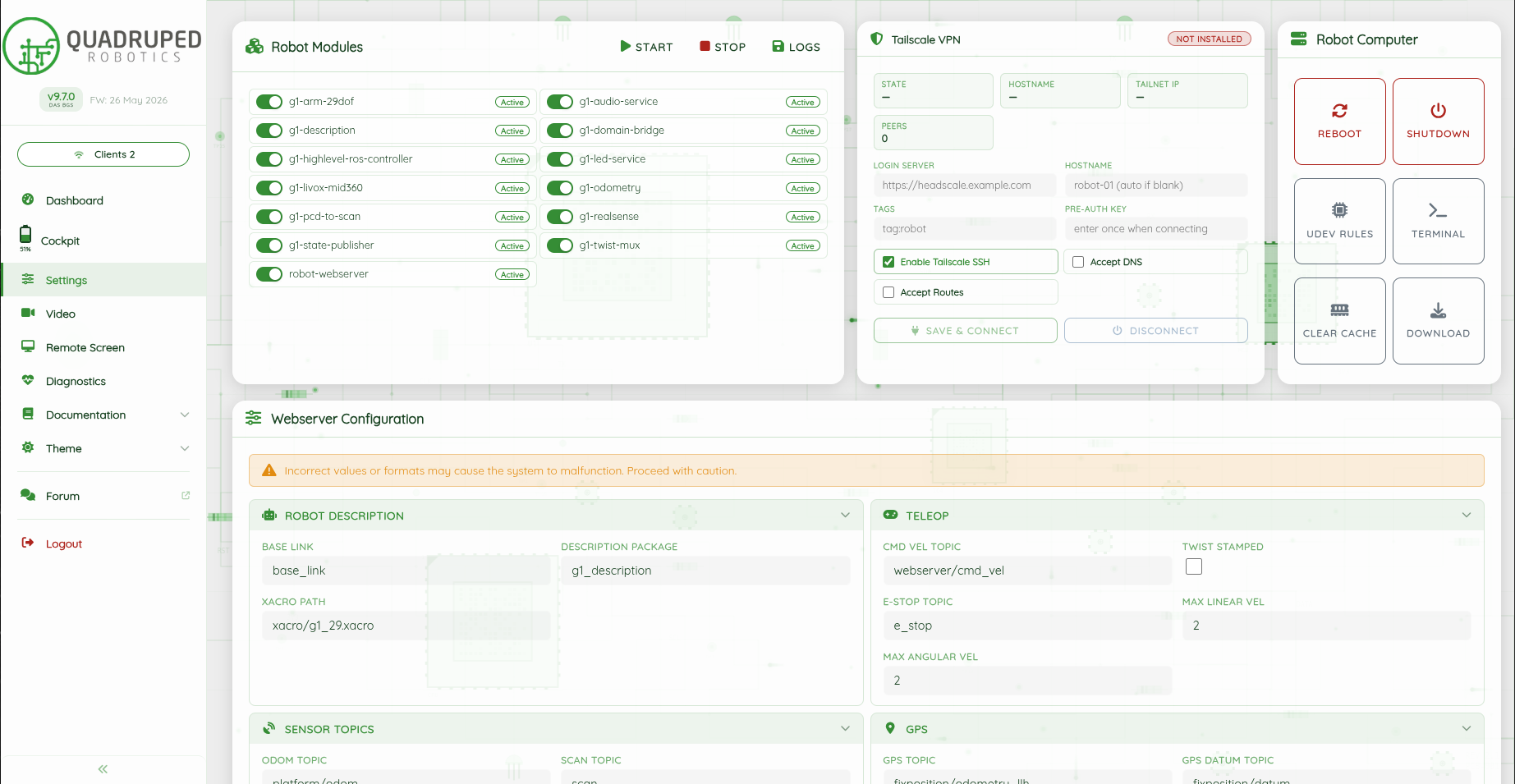
Robot modules
- Every ROS 2 module with its own toggle and status
- Start, stop and logs per module or for all at once
- This list is where robots differ: each one shows its own drivers, sensors and arms
Robot computer
- Reboot, shutdown and a terminal
Webserver configuration
- Robot description, teleop limits and sensor topics, editable in the browser
Diagnostics
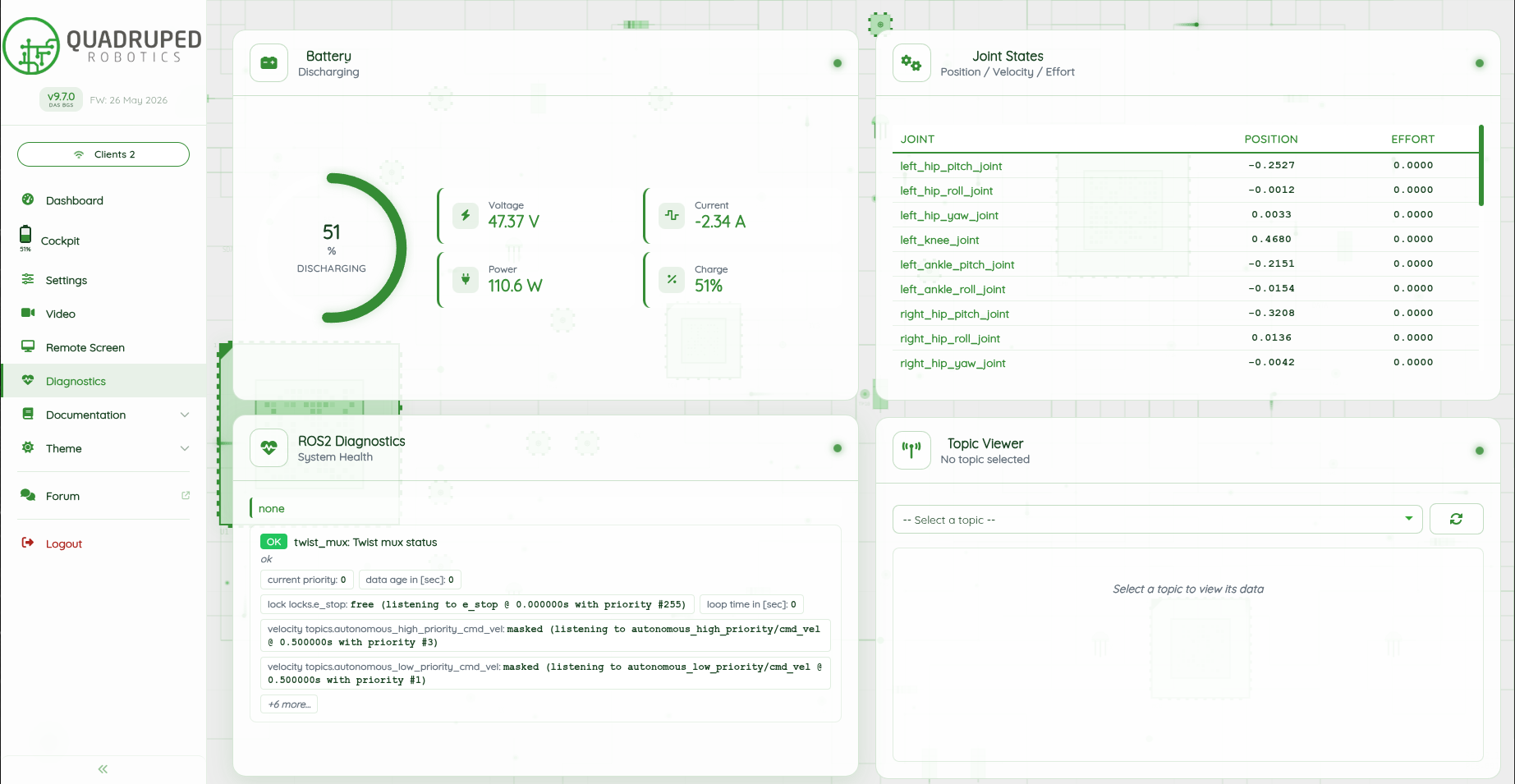
Robot health in the browser, with no separate tooling.
Battery
- Charge, voltage, current and power
Joints
- Position and effort for every joint
ROS 2
- The diagnostics aggregator with system health
- A topic viewer to inspect any topic's live data
Documentation
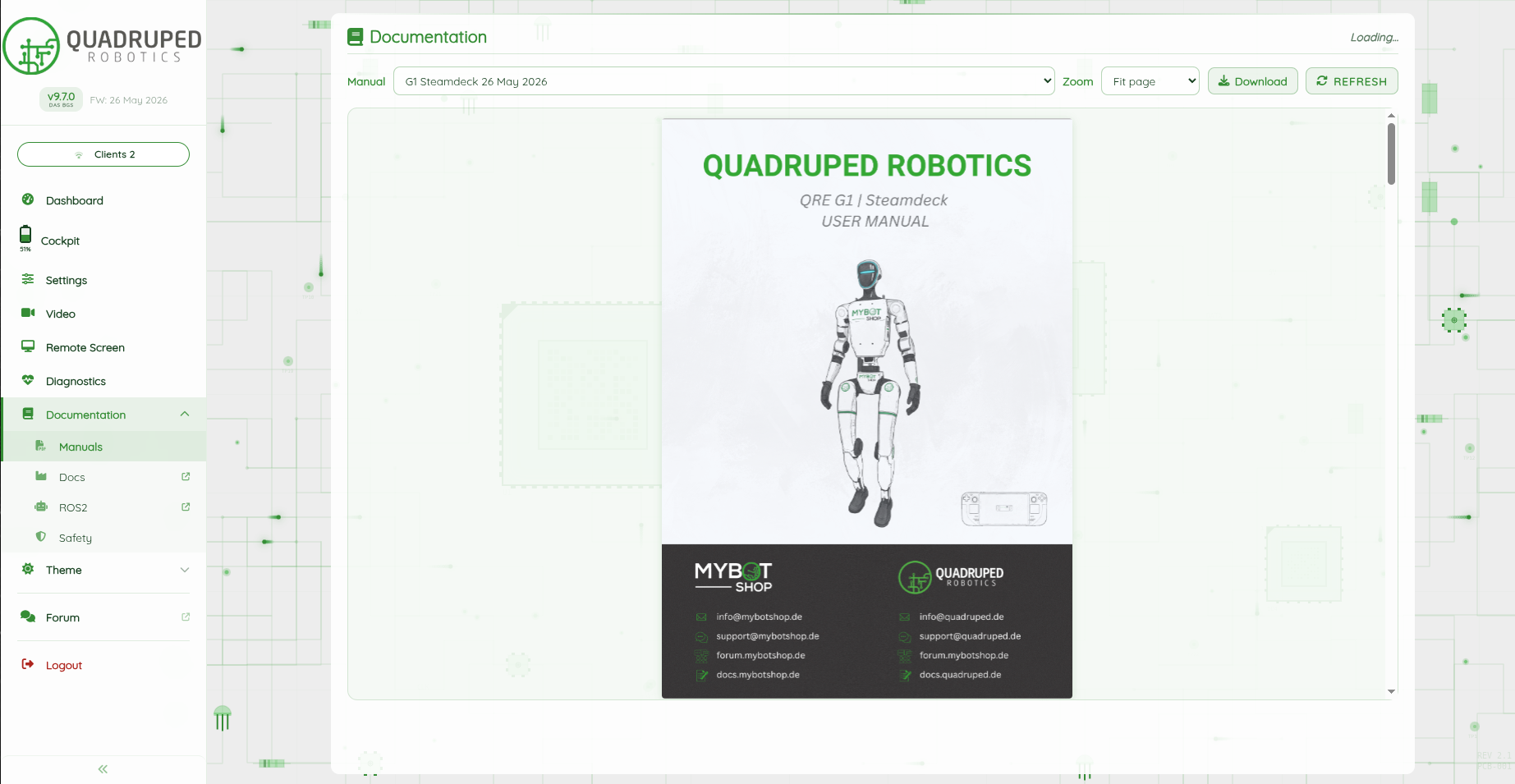
The manual, on the robot.
Always the right version
- The manual is served by the robot itself, so it matches the software actually installed
- Readable in the field without an internet connection
More in the menu
- Manuals, online docs, ROS 2 reference and safety notes
- Download as PDF
Address and login are on each robot's page
Every platform that ships with the webserver documents how to reach it on that robot.
If something goes wrong
Two steps, in order — the forum first for fast community and staff triage, then a direct ticket if it needs to go further.
MYBOTSHOP Forum
Open a topic on the MYBOTSHOP Forum for community and staff triage — most software questions and known issues get resolved here first.
Direct ticket
If it's unresolved, email support@mybotshop.de with the robot, the webserver version shown in the sidebar, and what's already been tried.
We're here for the whole deployment
A question about a webserver page, a module that will not start, or a panel you need for your own robot — the MYBOTSHOP team can help.
support@mybotshop.de