
A low-cost humanoid, fully documented.
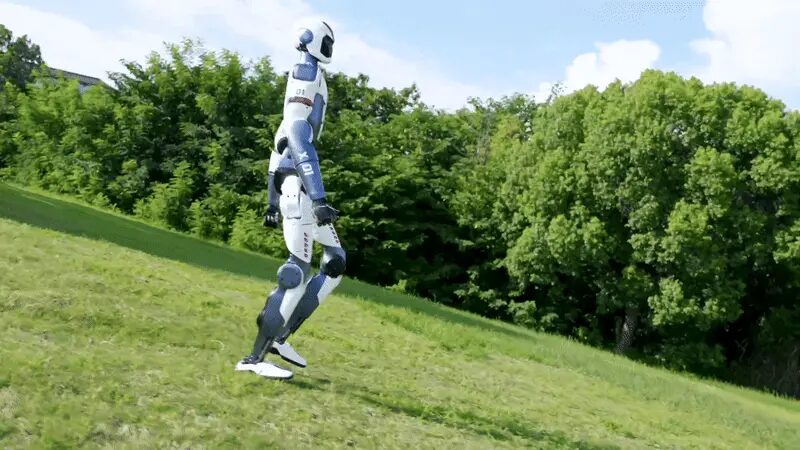
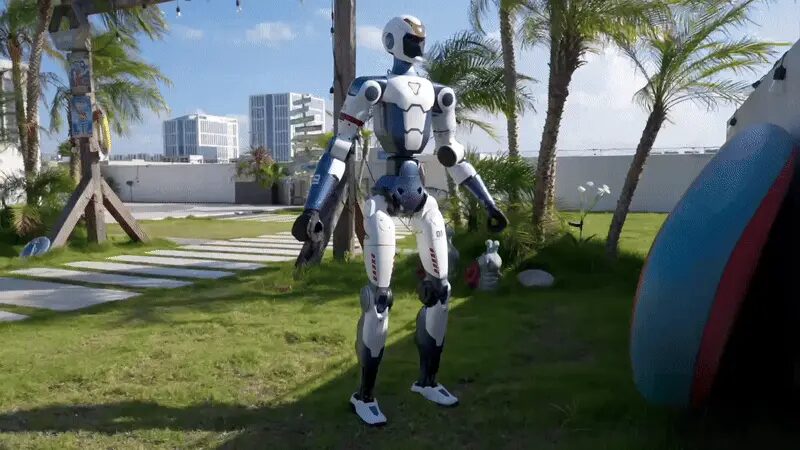
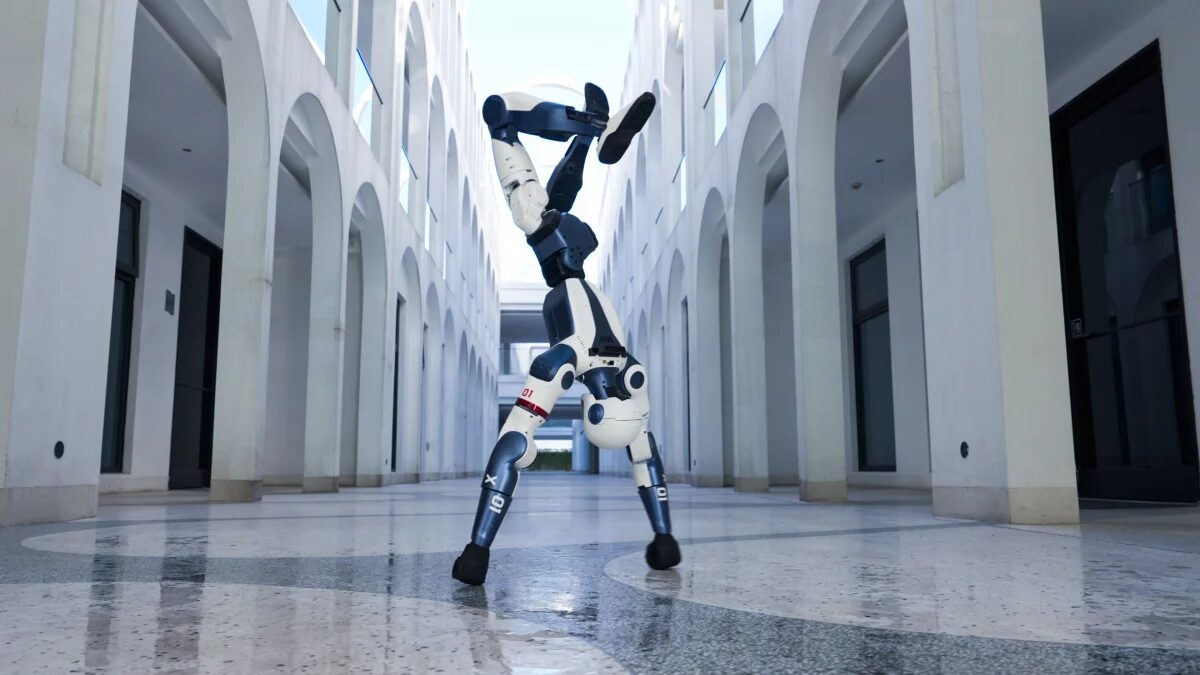
An ultra-lightweight, fully customizable research and embodied-AI platform — open control interfaces, a large-multimodal-model integration, and a modular body available in three configurations from a bare-bones AIR to a Jetson-equipped EDU.
From power-on to first command
Unitree's official power-on and posture-transition procedure — two supported starting postures, both requiring an operator to physically support the robot at the rear shoulder handle until it confirms stable balance.
The R1 startup shown step by step (about 4 minutes, in English, with sound): inserting the battery, power-on, standing up, walking mode, gestures with the remote, shutdown and removing the battery. The written steps follow below.
From Supine (lying down)
Lay the R1 flat, front side up, arms and legs relaxed. Insert the battery pack from the side (switch facing forward) until it clicks. Power on: short-press, then hold ≥2 s. Wait ~1 minute for zero-torque state, then L2+UP for standing preparation — hold the rear shoulder handle throughout. Once upright, R2+A hands the robot active balance and it's safe to let go.
From Standing (support frame)
Suspend the R1 on a support frame, front facing forward, feet clear of the ground. Same battery install and power-on sequence. After L2+UP, hold the shoulder handle, release the frame's quick-release clamp, and gradually lower the bracket until the feet contact the ground. R2+A once stable hands over active balance.
Emergency stop
If the R1 enters an abnormal or unsafe state, press and hold L2+B for more than 5 seconds. The robot switches to damping mode and gradually lowers itself to the ground.
Shutdown procedure
Move to an open area, hold the rear handle, L2+UP to standing preparation, then gently lay the R1 on its back. Press L2+Y for zero-torque mode, then short-press and hold the battery switch ≥2 s to power off. Remove the battery pack if the robot will sit unused for an extended period.
The R1 cannot actively maintain balance until operation control mode (R2+A) is confirmed — never release the handle before that point. Full procedure: Official Unitree R1 Developer Guide · MYBOTSHOP R1 User Manual (PDF).
Three variants, one open control stack
The R1 body scales from a bare-bones AIR up to a Jetson-equipped EDU, all sharing the same open, DDS-based control interfaces — documented here from Unitree's own R1 developer material.
Three Model Variants
AIR (~25 kg, 20 DOF, no waist/head articulation, monocular camera) · Basic (~29 kg, 26 DOF, 2-DOF waist + 2-DOF head, binocular depth camera) · EDU (26–40 DOF, adds an optional dexterous hand and a secondary-development computer).
Dexterous Hand (Dex3-1)
Optional three-finger end-effector for the EDU variant — 7 active DOF (3 thumb, 2 index, 2 middle), 9 array sensors, 10–2500 g force sensing at 12–58 V. Increasing shoulder outward offset is recommended to avoid self-collision with the hand active.
Camera & Perception
AIR: monocular camera, up to 146° horizontal / 110° vertical FOV. Basic / EDU: binocular depth camera, up to 150° horizontal / 124° vertical FOV — 1280×1088 RGB, 544×448 depth, HDR & global shutter.
Onboard Computer (EDU)
NVIDIA Jetson Orin NX Development Computing Unit for secondary development — 8-core Cortex-A78AE, 1024-core Ampere GPU, 16 GB RAM, 2 TB storage, 40–100 TOPS. Preconfigured at 192.168.123.164 (default login unitree/123 — change after first access).
Electrical Interfaces
Upper-body interface panel: USB 3.0 Type-C (EDU rear compute link), 24 V/3 A and 36 V/5 A XT30 power outputs, a GH1.25 external emergency-stop input, gigabit RJ45, and an integrated physical STOP button.
Open Control Interfaces
Fully open joint and sensor control over Unitree's DDS-based stack: unitree_sdk2 (C++) and unitree_sdk2_python for high- or low-level control, plus unitree_ros2 to bridge the same interface into ROS 2 topics.
SDK development & network setup
The R1 is controlled through Unitree's CycloneDDS-based communication stack, which operates with or without ROS 2 while remaining ROS 2 compatible — the same low-level joint interface documented in the URDF playground above.
Requirements
Ubuntu 20.04 LTS · GCC 9.4.0 (C++17) · CMake 3.10+ · x86_64 or aarch64 · Python 3.8+ (optional, for unitree_sdk2_python).
Network Configuration
Connects to a development PC over Gigabit Ethernet using CycloneDDS, on the conventional Unitree 192.168.123.x subnet. The interface name (e.g. eth0) is passed to every example and to ChannelFactory::Instance()->Init(0, argv[1]) / ChannelFactoryInitialize(0, sys.argv[1]).
High- vs Low-Level Control
High-level control issues task-space commands (locomotion, posture, velocity) and is the safe default. Low-level control commands individual joint targets directly — it bypasses built-in balancing safeguards, so commanded motions must stay within the documented joint limits at all times.
Low-level joint indices, names and motion limits are listed in full in the MYBOTSHOP R1 User Manual and mirrored in the URDF playground above. Full SDK setup and build commands: Official Unitree R1 Developer Guide.
Manuals, SDK docs & robot description
Everything needed to operate the R1 safely, develop against its SDK stack, or bring its model into your own tooling.
Complete Source Repo
The complete ROS 2 source workspace for QRE R1 — every ROS 2 package, launch file and driver node, built and maintained by MYBOTSHOP. Confidential — shared under NDA with named customers; sign in or request access below.
Official Unitree R1 Developer Guide
The manufacturer's own R1 documentation — the authoritative reference for firmware-specific detail, joint limits and network addresses not published elsewhere.
Open docs →MYBOTSHOP R1 User Manual
A single self-contained manual: startup & shutdown procedure, full variant & hardware specification, mounting-hole and electrical-interface diagrams, the complete 26-joint index/limit table, and SDK/network setup.
Download PDFR1 Robot Description (URDF)
The r1_description package for the 26-DOF Basic/EDU body — URDF, visual & collision meshes and package.xml — the same model rendered live in the playground above. Drop it into a ROS 2 workspace, RViz, or MoveIt.
Unitree SDK Repositories
unitree_sdk2 (C++), unitree_sdk2_python, and unitree_ros2 — the open-source SDKs behind the Software section above.
Unitree Document Center
The wider Unitree documentation index, if you need material for another Unitree platform alongside the R1.
Open docs →Looking for the AIR (20-DOF) or Dex3-1 hand-equipped URDF variants, or the QRE R1 ROS 2 driver source (legs/locomotion milestone complete, arms/audio/navigation in progress)? Ask us directly.
If something goes wrong
Two steps, in order — the forum first for fast community and staff triage, then a direct ticket if it needs to go further.
MYBOTSHOP Forum
Open a topic on the MYBOTSHOP Forum for community and staff triage — most software questions and known issues get resolved here first. For code-level bugs, GitHub Issues, StackOverflow and Answers-ROS are also in play.
Direct ticket & RMA
If it's unresolved, email support@quadruped.de with the problem description and what's already been tried. For hardware issues we'll issue an RMA number and return instructions — returns without an RMA number are auto-rejected.
RMA returns ship to: QUADRUPED Robotics GmbH c/o MYBOTSHOP GmbH, Willy-Messerschmitt-Strasse 12, 50126 Bergheim, Germany.
We're here for the whole deployment
Fleet rollout, a new use case, or a question about SDK integration — the MYBOTSHOP team can help.
support@quadruped.de