
A twelve-joint bionic quadruped with its own 4D LiDAR.
Standard hip‑thigh‑calf leg layout on all four legs, a self-developed 4D LiDAR L1 for 360°×90° obstacle sensing, and a ROS 2 driver stack (QRE Go2) from QUADRUPED Robotics on top — plus optional Steamdeck teleop and D1 / Open Manipulator arm variants.
From unboxing to a driving robot
App binding for everyday driving, then the ROS 2 network and launch sequence for development — enough to go from a boxed GO2 to keyboard teleop over LAN.
Unbox & update firmware
The GO2 ships in a secondary box with a white product box and a travel trolley bag inside. Before first use, open the Unitree Go app, go to EMPLACE → Update and update the firmware — an outdated firmware restricts proper app usage.
Bind the app
Download the Unitree Go app (iOS/Android), register an account, then power on the GO2, enable Bluetooth, and add the robot. Choose AP Mode (robot's own hotspot, GO2-XXXXXX) or Wi-Fi Mode to finish pairing.
Basic operation
Left rocker moves/strafes, right rocker aims the head. L2 long-press + B is the damping emergency stop. START resets to the default gait; double-tapping M on the small remote enters Accompany (side-follow) mode.
Calibrate if needed
Under EMPLACE → data → robodog, run the imu or legs calibration on a flat, level surface with all four pads touching the ground, then restart the robot to save.
Connect — static LAN
Plug in an Ethernet cable, then set your PC's IPv4 to Manual: address 192.168.123.51, netmask 24. Verify with ifconfig, ping the robot with ping 192.168.123.18, then ssh -X unitree@192.168.123.18 (password 123).
Launch & teleop
sudo service ros2 status   # already running? skip the next line
ros2 launch go2_bringup system.launch.py
ros2 run teleop_twist_keyboard teleop_twist_keyboard
Or open the webserver at http://192.168.123.18:9000/ and drive from the Console tab instead.
The GO2 MCU sits at 192.168.123.161, the router at .100, and (if fitted) the Steamdeck at .150. When connected to the internet, the GO2's large-language-model and login information is transferred to Unitree. Full IP table, button map and safety notes: Official Unitree Go2 Docs · MYBOTSHOP Go2 User Manual (PDF).
The QRE Go2 ROS 2 stack
QUADRUPED Robotics, a MYBOTSHOP brand, layers a ROS 2 driver (go2_bringup, domain ID 10), navigation, SLAM, sensor and manipulation packages, plus a browser webserver, on top of the stock Unitree hardware.
High-Level Control
Unitree's own gait controller handles balance and locomotion. ROS 2 services expose balance_stand, stand_up/stand_down, sit, stretch, damp, front_jump, front_pounce, front_flip and stop_move, plus light and volume control.
Low-Level Control
The go2_lowroscontrol example drives individual joints directly and can run concurrently with Unitree's own SDK low-level examples — no built-in balancing, so it's for users already familiar with gait planning and custom controllers.
Gaits & Locomotion Modes
Five gait presets switchable live via a ROS 2 service — Normal Trot (recommended for Nav2/SLAM), Flat Terrain, Economic Trot, Fast Trot and A.I. Trot. Sports Mode is deprecated on GO2 firmware v2.2.1 and newer.
Navigation & SLAM
Mid-360 LiDAR-driven SLAM builds and exports a point-cloud map, odometric navigation drives goal-directed without a map, and map navigation replays a saved map with 2D pose-estimate correction in RViz.
Obstacle Avoidance
A dedicated package uses the Mid-360 LiDAR for two-zone avoidance — an inner zone stops the robot outright, an outer zone slows it down — toggled on or off with a single ROS 2 service call.
Sensors & Cameras
Intel RealSense D435i and D405 depth cameras, Livox Mid-360 and Hesai Pandar XT-16 LiDAR options, and an optional SIYI ZT30 gimbal camera (wide/zoom/thermal, photo/video, pan-tilt) — each with its own ROS 2 launch file.
Manipulation — D1 & Open Manipulator
Two supported arm options — the compact 6-DOF Unitree D1 servo arm and the ROBOTIS Open Manipulator X — both driven via ROS 2 FollowJointTrajectory actions with home/stand presets and explicit gripper open/close calls.
Simulation
A Gazebo Fortress simulation (ROS 2 Humble) covers both the base GO2 and the wheeled GO2-W variant, with effort/velocity/position trajectory examples. Isaac Sim support ships on the separate qre-go2-humble branch.
See it in the browser
A guided tour of the QRE Go2 webserver, straight from the driver package's own documentation. See how the same pages look on other robots on the Webserver page.
Autonomous waypoint navigation
Map creation and waypoint editing happen once, over the QRE webserver — day-to-day operation afterwards is a single button. This pattern applies to any LiDAR-equipped robot in the fleet, for inspection or delivery-style tasks.
Go2 running an autonomous route between two waypoints with live Mid-360 LiDAR obstacle avoidance. The map and waypoints (WP A / WP B) were set up once through the QRE webserver; from there, one button press sends the robot to Waypoint A, a second press to Waypoint B.
Set up once
Map the space and place waypoints A/B through the webserver's SLAM view — a one-time step per site or route.
Single-button operation
No trained personnel needed after deployment — one press moves the robot to Waypoint A, a second press to Waypoint B.
Gentle emergency stop
Emergency stop brings the robot to a controlled, gentle sit rather than an abrupt halt.
Works across the fleet
Any robot with a LiDAR can run the same waypoint pattern — a natural fit for inspection or delivery tasks.
Steamdeck teleop & the Open Manipulator arm
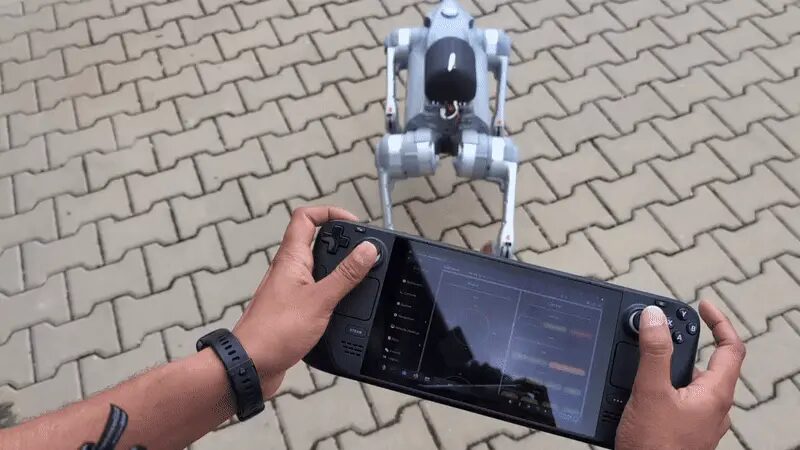
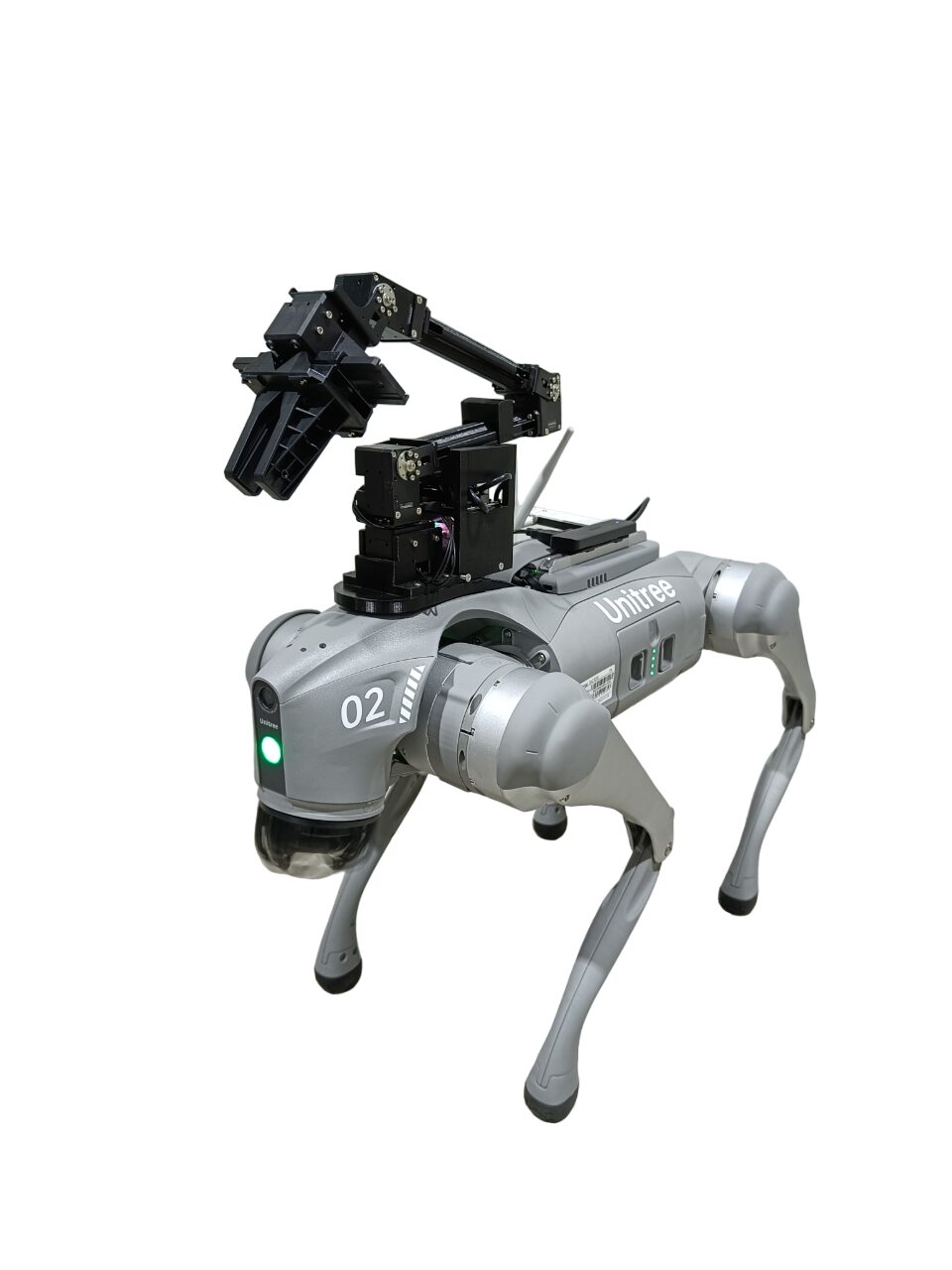
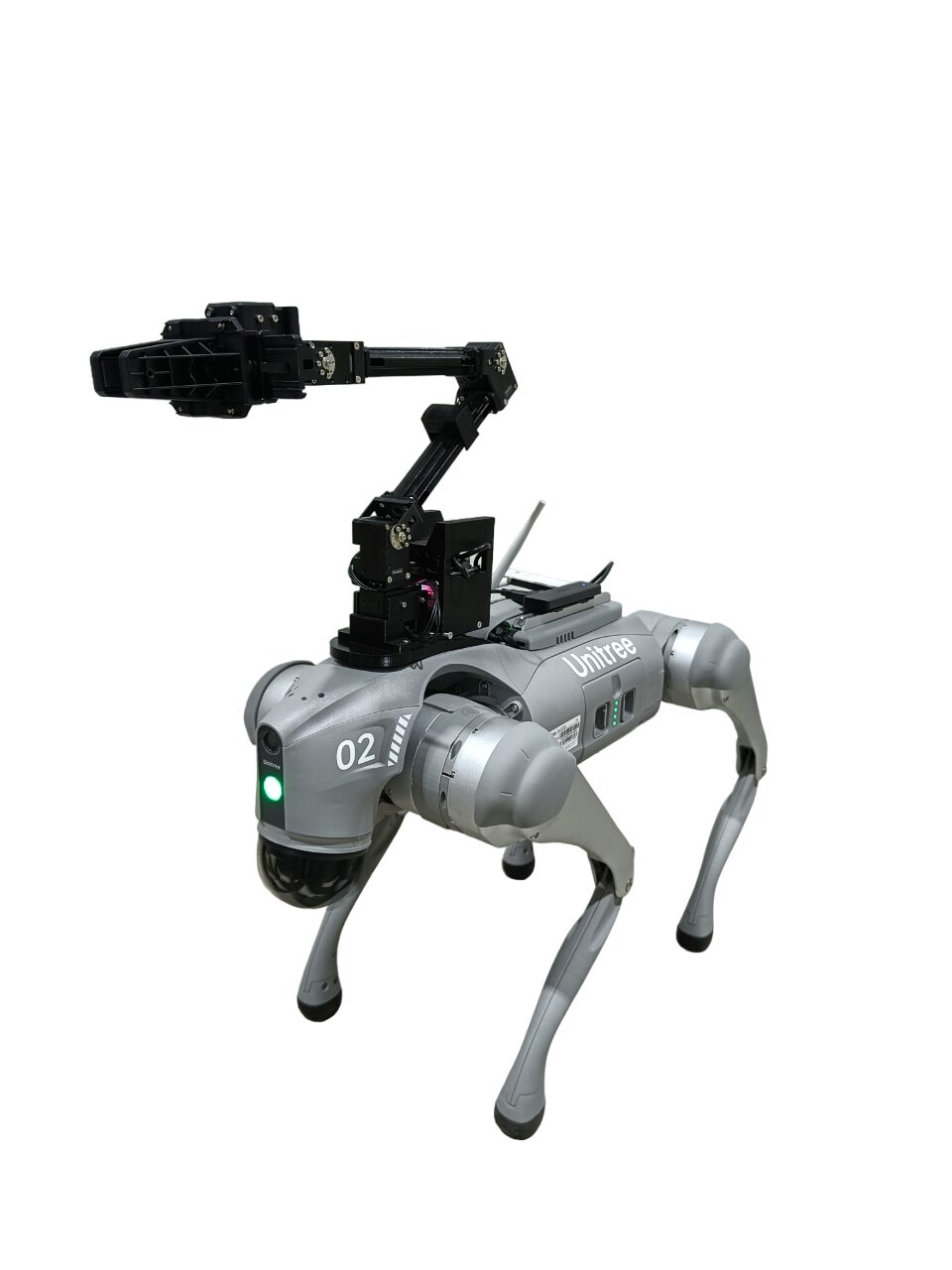
Two accessories with their own setup and safety notes: a Steamdeck handheld for driving without a laptop, and a ROBOTIS Open Manipulator X arm for pick-and-place work.
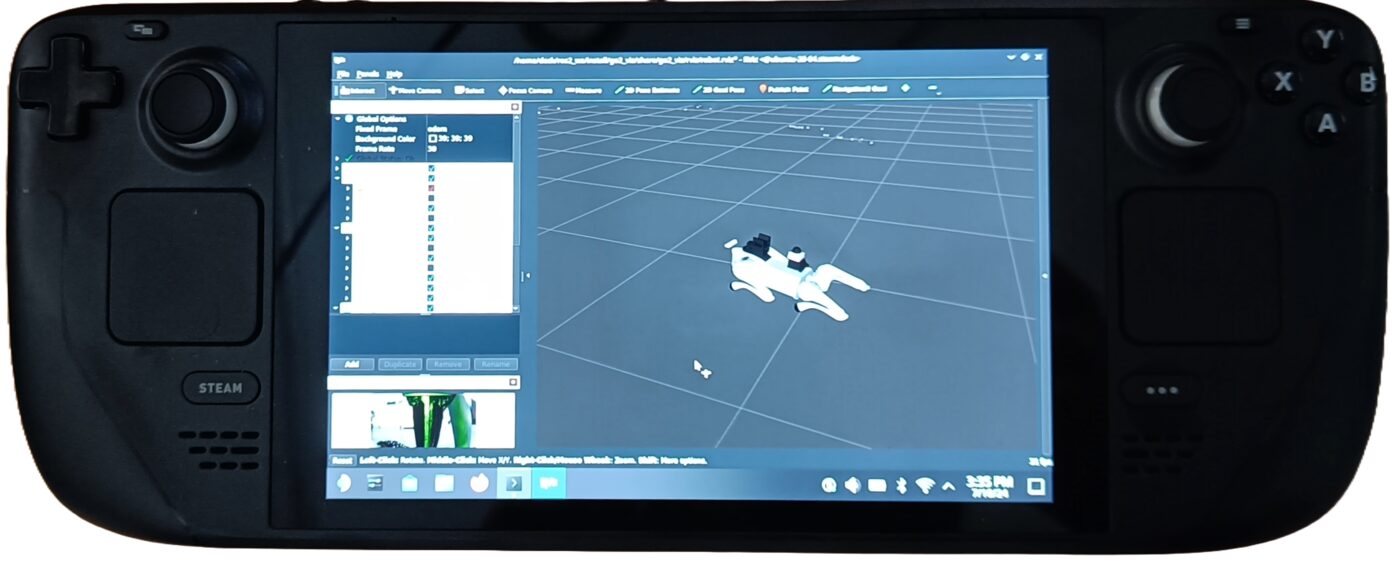
Steamdeck Controller
Basic Controls
R2/L2 are the mouse left/right click, the trackpads scroll and move the pointer, and holding the three-dash button for 3 seconds toggles between gamepad mode and desktop mode.
Robot Controls
L1 is the dead-man's switch for slow speed, R1 for high speed. The left joystick moves in x/y, the right joystick yaws, and B releases the lift's soft switches at maximum height.
Initialization
Connect to the robot's own router, tap the Joystick Launcher once to arm control, then the Rviz2 Launcher to visualize — the webserver opens automatically at 192.168.123.18:9000 for gait switching.
Open Manipulator (OM X)
ROS 2 Control
Launch the custom Open Manipulator driver and MoveIt state publisher, then send FollowJointTrajectory goals for the four arm joints, or drive the gripper between fully open (‑1.0) and fully closed (1.0).
Precautions
Certain GO2 actions (e.g. wallow) flip the robot onto its back and can damage an attached arm. Always power off correctly when the battery is low, and return the arm to home position before killing its driver.
Known Issue
An unresponsive Open Manipulator is usually caused by the Dynamixels landing in the wrong joint positions. Fix by power-cycling the whole robot, or just the arm with its driver stopped first.
Full safety guidelines for both the manipulator and the autonomous robot (work-area, electrical, emergency-response and human-interaction safety) are reproduced in Chapter 9 of the MYBOTSHOP Go2 User Manual (PDF).
Manuals, docs & robot description
Everything needed to operate the Go2 safely, develop against the QRE Go2 ROS 2 stack, or bring its model into your own tooling.
Official Unitree Go2 Documentation
The manufacturer's own Go2 documentation: user manuals, mobile apps, the Unitree SDK, and the firmware update tool.
Open docs →MYBOTSHOP Go2 User Manual
A single self-contained manual: unboxing and app binding, ROS 2 network/webserver quick start, the full robot-interface and package reference, the Steamdeck's own walkthrough, Open Manipulator safety guidelines, and the complete hardware specification.
Download PDFGo2 Robot Description (URDF)
The full go2_description package — URDF/xacro for the base 12-DOF body plus accessory xacros for the D1 arm, Open Manipulator, ZT30, RealSense, Mid-360, Hesai and Steamdeck rig, visual & collision meshes and package.xml. The base-body model is the same one rendered live in the viewer above. Drop it straight into a ROS workspace, RViz, or MoveIt.
The QRE Go2 ROS 2 driver source is maintained in a private MYBOTSHOP repository — if you need access for development, email your GitHub username and purchase ID to support@mybotshop.de.
If something goes wrong
Two steps, in order — the forum first for fast community and staff triage, then a direct ticket if it needs to go further.
MYBOTSHOP Forum
Open a topic on the MYBOTSHOP Forum for community and staff triage — most software questions and known issues get resolved here first. For code-level bugs, GitHub Issues, StackOverflow and Answers-ROS are also in play.
Direct ticket & RMA
If it's unresolved, email support@quadruped.de with the problem description and what's already been tried. For hardware issues we'll issue an RMA number and return instructions — returns without an RMA number are auto-rejected.
RMA returns ship to: QUADRUPED Robotics GmbH c/o MYBOTSHOP GmbH, Willy-Messerschmitt-Strasse 12, 50126 Bergheim, Germany.
We're here for the whole deployment
Fleet rollout, a new use case, or a question about the Steamdeck or Open Manipulator variant — the MYBOTSHOP team can help.
support@quadruped.de