
A wheeled-bipedal robot that balances, crouches and climbs curbs on two actuated legs.
Diablo is manufactured by DDTRobot and distributed/integrated by MYBOTSHOP GmbH. Each of its two parallel-linkage legs ends in a single drive wheel, combining dynamic self-balancing wheeled locomotion with leg-based height and posture changes — crouching, leaning, and curb-climbing.
From packed-away to driving over ROS 2
Diablo's own network setup, SSH access and driver launch procedure — everything needed to get from a robot in its flight case to a supervised teleop session.
Connect: Ethernet or WiFi
Connect an Ethernet cable from your host PC to Diablo's Raspberry Pi, then create a static connection on the host with IP 192.168.0.51 and netmask 255.255.255.0. Alternatively, run sudo nmap -sP 192.168.0.* on a shared network to find Diablo's address, or join it to your own WiFi via sudo nmtui on the robot and read the new address back with ifconfig.
SSH in
Once the network is up, SSH into the onboard Raspberry Pi:
ssh -X diablo@192.168.0.<diablo_ip>
# password: diablo123
Set ROS_DOMAIN_ID
Diablo's default ROS 2 domain ID is 5. Add it to your host's ~/.bashrc so host and robot can see each other's topics:
export ROS_DOMAIN_ID=5
Launch the driver
On Diablo itself, start the hardware driver:
ros2 run diablo_ctrl diablo_ctrl_node
Then, on your own host PC:
ros2 launch diablo_bringup bringup.launch.py
Enable remote mode
Before driving under remote/teleop control, flip the physical switch on the back bottom right of the robot down to put Diablo into remote mode.
Teleop
Drive Diablo — real robot or simulation — with the standard ROS 2 keyboard teleop:
ros2 run teleop_twist_keyboard teleop_twist_keyboard
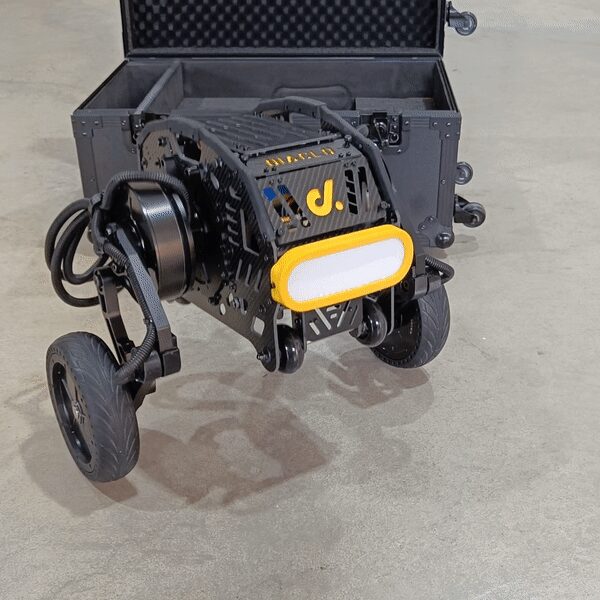
Transport case
Diablo ships in a padded flight case with its legs folded down for transport — the same case doubles as protective storage between deployments.
Network table
Diablo's own docs list one entry for the onboard device: host name diablo, network 192.168.0.*, user diablo, password diablo123.
Nav2 / CycloneDDS tuning
For smooth ROS 2 Nav2 performance, install CycloneDDS as the RMW implementation and raise the kernel's socket buffer once:
sudo apt install ros-foxy-rmw-cyclonedds-cpp
export RMW_IMPLEMENTATION=rmw_cyclonedds_cpp
Full ROS 2 Foxy host install, network table and package reference: MYBOTSHOP Diablo User Manual (PDF).
What Diablo can do
A wheel-legged balancing platform with a ROS 2 driver, visualization and navigation stack layered on top.
Wheel-Legged Balancing
Two parallel-linkage legs, each ending in a single drive wheel, let Diablo balance dynamically while rolling and also change height and posture — crouching, leaning, and climbing curbs.
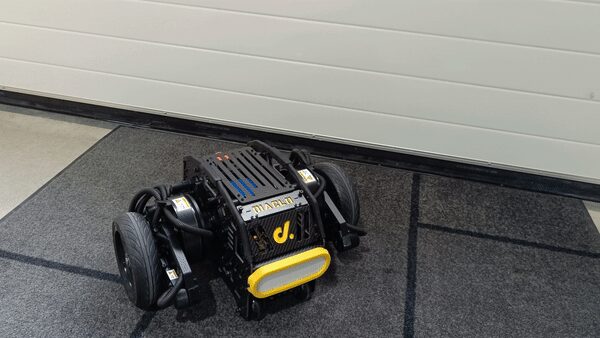
Diablo Bringup & Description
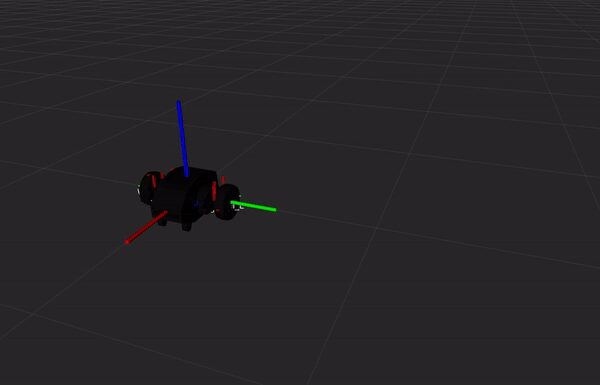
diablo_bringup launches the base driver plus IMU, LiDAR (if fitted), robot description and EKF localization in one go. diablo_description holds the 3D models — the same URDF rendered live in the viewer above — stitched together via xacro.
Visualization
diablo_viz visualizes the robot's current state, in simulation or on the real hardware, and is already switched on by diablo_bringup — or launch it standalone.
Navigation: Odom & Map
diablo_navigation covers odometry-based navigation (drive to a goal in the odom frame) and map-based navigation:
ros2 launch diablo_navigation odom_navi.launch.py
ros2 launch diablo_navigation map_navi.launch.py
Teleoperation
Drive Diablo — real robot or simulation — with the standard ROS 2 keyboard teleop node, once the driver is up and remote mode is enabled on the robot's back-panel switch.
Proprietary MBS Drivers
A proprietary ROS 2 package with additional MYBOTSHOP drivers is available on request — not publicly distributed. Copy it into your ros2_ws and build with colcon build --symlink-install.
Manuals, ROS 2 docs & robot description
Everything needed to operate Diablo safely, develop against its ROS 2 stack, or bring its model into your own tooling.
Complete Source Repo
The complete ROS 2 source workspace for MBS Diablo — every ROS 2 package, launch file and driver node, built and maintained by MYBOTSHOP. Confidential — shared under NDA with named customers; sign in or request access below.
MYBOTSHOP Diablo User Manual
A single self-contained manual: network & SSH setup, ROS 2 Foxy host installation, operation commands, and the full package reference — with the dingo_* command names in the source docs corrected to the real diablo_* ones.
Diablo Robot Description (URDF)
The diablo_description package — URDF, visual meshes and package.xml — the same model rendered live in the viewer above. Drop it straight into a ROS 2 workspace, RViz, or MoveIt.
Looking for the full mbs_diablo ROS 2 driver source (private repository)? Ask us directly — include your MYBOTSHOP order ID and GitHub username or email.
If something goes wrong
Two steps, in order — the forum first for fast community and staff triage, then a direct ticket if it needs to go further.
MYBOTSHOP Forum
Open a topic on the MYBOTSHOP Forum describing the issue in detail — support staff and the community will try to resolve it remotely first. Code-level bugs can also go to GitHub Issues, StackOverflow or Answers-ROS.
Direct ticket & RMA
If it can't be resolved remotely, email support@mybotshop.de with a detailed description and the troubleshooting already tried. MYBOTSHOP will evaluate the case and, if needed, issue an RMA number with a return address or shipping label — returns without an RMA number are declined and sent back.
RMA returns ship to: MYBOTSHOP GmbH, Willy-Messerschmitt-Strasse 12, 50126 Bergheim, Germany.
We're here for the whole deployment
Fleet rollout, a new use case, or a question about a specific ROS 2 package — the MYBOTSHOP team can help.
support@mybotshop.de