
A rugged research platform, fully documented.
A durable, lightweight, differential-drive UGV for indoor and light-outdoor research and rapid prototyping — sold across five hardware/software SKUs (BU, AAC, MGB, RS, SUL) spanning ROS 2 Foxy, Humble and Jazzy.
From power-on to first drive
Enough to go from a cold Jackal to a robot you can SSH into and drive — power-on, choosing a connection method, battery care, and the handheld controller.
Power on
Press the designated power button. Startup can take up to a minute when perception sensors (Ouster LiDAR, ZED2i) are fitted and initializing alongside the onboard PC. A steady green light on the M marking confirms the MCU has started and is ready to receive commands; the directional arrows indicate the same readiness.
Static LAN Connection
Connect a LAN cable and set your PC's IPv4 to Manual, address 192.168.131.51, netmask 24. Ping 192.168.131.1, then SSH in as administrator (password mybotshop).
Screen + Keyboard
Connect an HDMI display, mouse and keyboard directly to the Jackal and join it to your local WiFi network. From then on, SSH over that WiFi connection instead of a cable.
Network Scan
For Jackals left on default DHCP, skip the static connection and scan for it instead: nmap -sP 192.168.0.*, identify the robot, then SSH directly to the address found.
Battery & charging
Release the latches under the front of the lid to reach the AllCell Li-Ion battery and its two connectors: Anderson Power Pole (must be connected for the robot to run) and Molex (charges the battery internally while powered off). Charge internally via the port under the rear fender, or remove the battery to charge externally. Don't operate or store it above +60°C or below −19°C, puncture it, or disassemble it.
Drive with the controller
The paired handheld gamepad drives locomotion directly: press the main button to power the controller on, hold L1 as the dead-man's switch for low speed or R1 for high speed, and use the left stick (LJ) for direction.
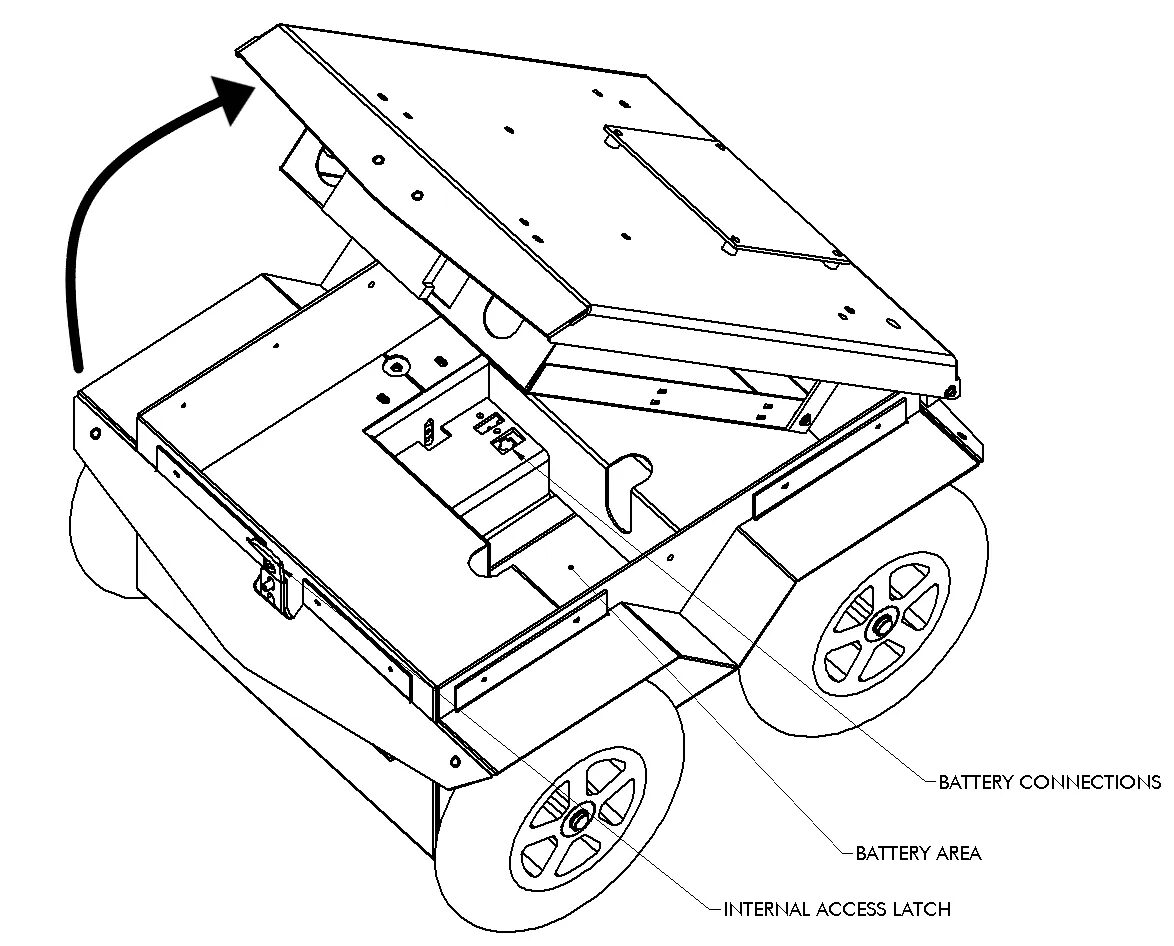
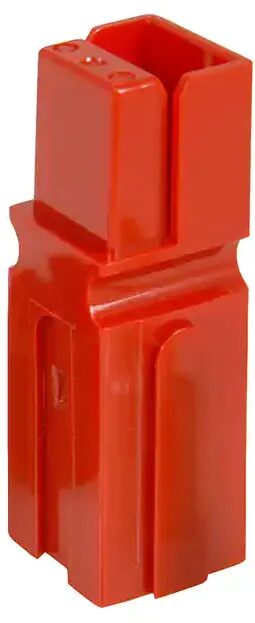
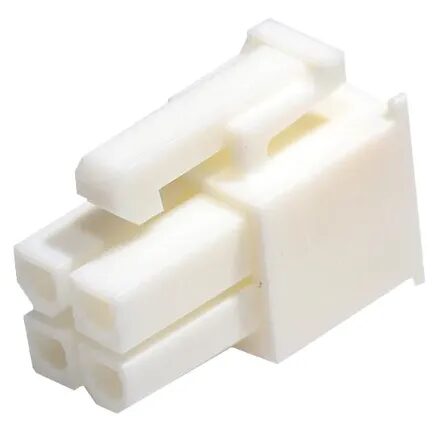
Full procedure and battery safety notes: Official Clearpath Jackal Documentation · MYBOTSHOP Jackal User Manual (PDF).
Reaching the robot over SSH
Every SKU uses the same static-IP pattern; the exact addresses and startup services differ slightly by ROS 2 distribution — check which is installed on your unit.
Default IP addresses
| Device | IP Address | Password |
|---|---|---|
| Jackal Main PC | 192.168.131.1 | mybotshop |
| Ouster LiDAR (SUL/BU) | 192.168.131.20 | — |
Access at a glance
Checking the robot booted cleanly
SSH in and check the ROS 2 startup job before assuming a sensor or driver issue — the command and service name differ by distribution.
ROS 2 Foxy
Startup is managed by the Clearpath startup job.
ROS 2 Humble
MBS startup services auto-launch the ROS 2 nodes; the Ouster LiDAR (where fitted) runs as its own service.
ROS 2 Jazzy
Clearpath robot services auto-launch the ROS 2 nodes on boot.
A red status marker means a failed startup job, green means normal, grey means the service hasn't started yet — restart with sudo systemctl restart clearpath-robot.service (Humble/Jazzy) or sudo service ros2 restart (Foxy).
Five SKUs, one base platform
Every SKU shares the same J100 chassis, onboard computer, IMU and GPS — they differ in the perception sensor fitted and the ROS 2 distribution installed. Confirm which one you have before following a package name elsewhere on this page.
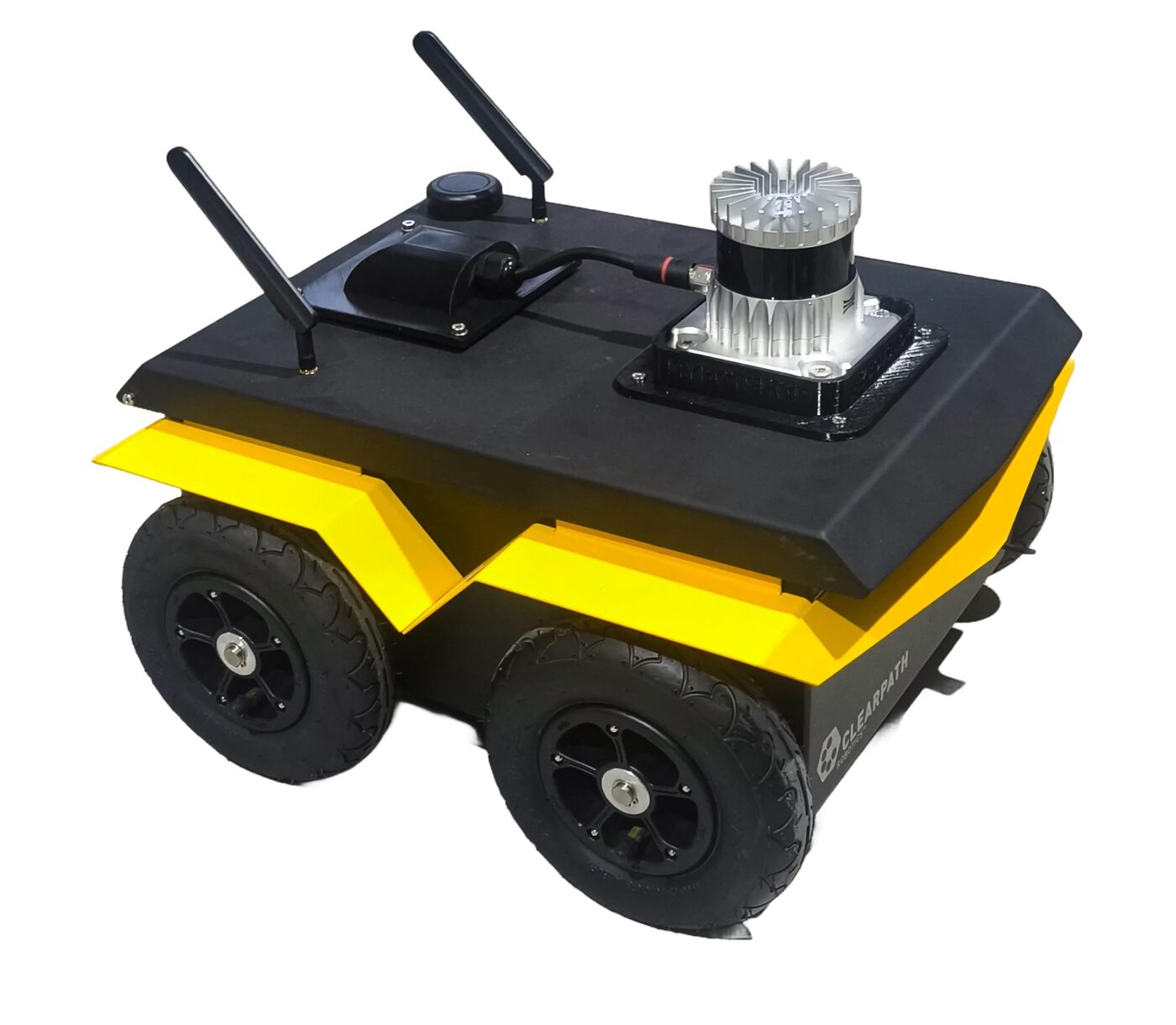
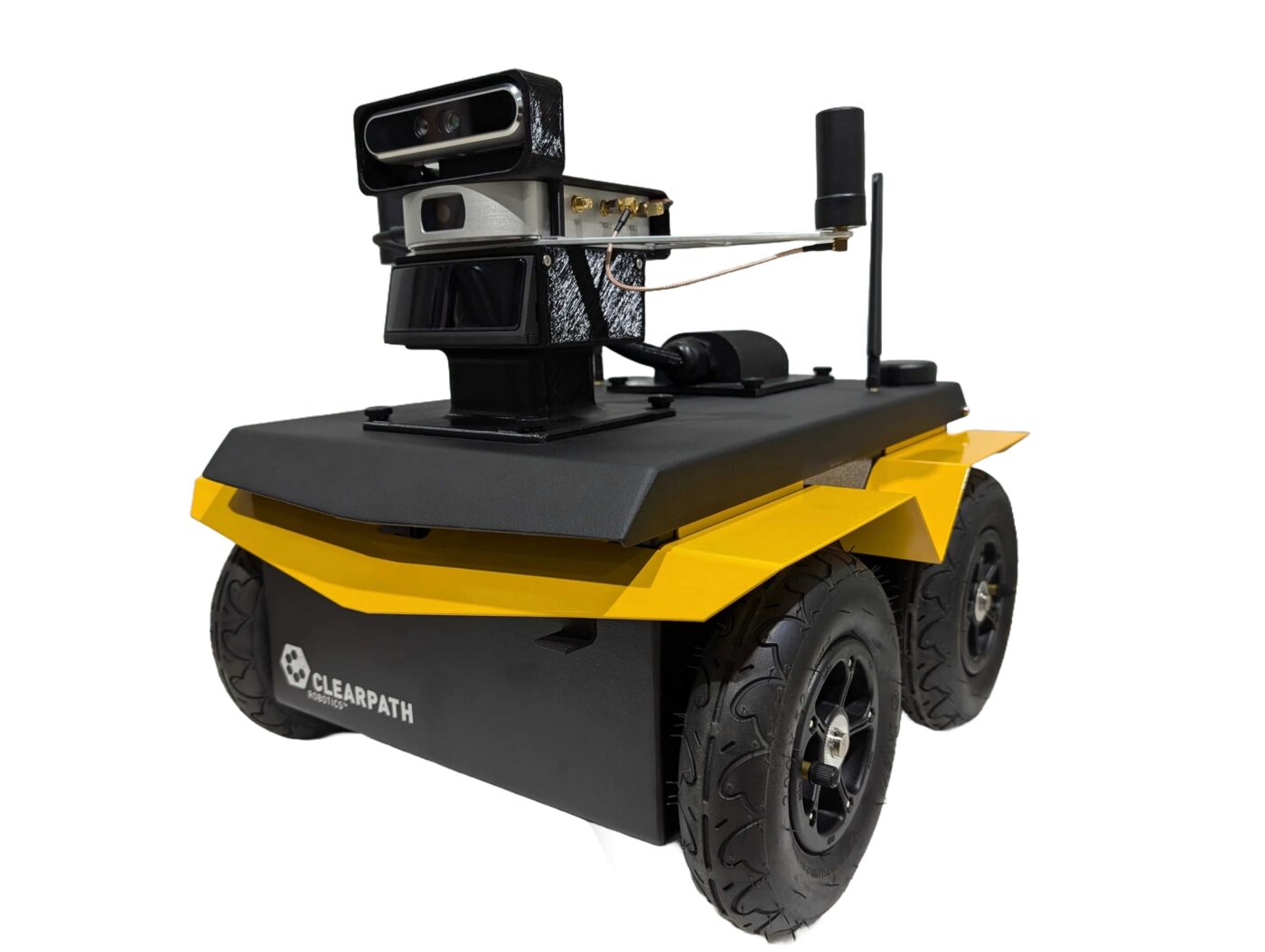
Jackal BU
Base unit — J100 chassis with the onboard PC, IMU and GPS, plus an Ouster LiDAR enabled by default from the startup job.
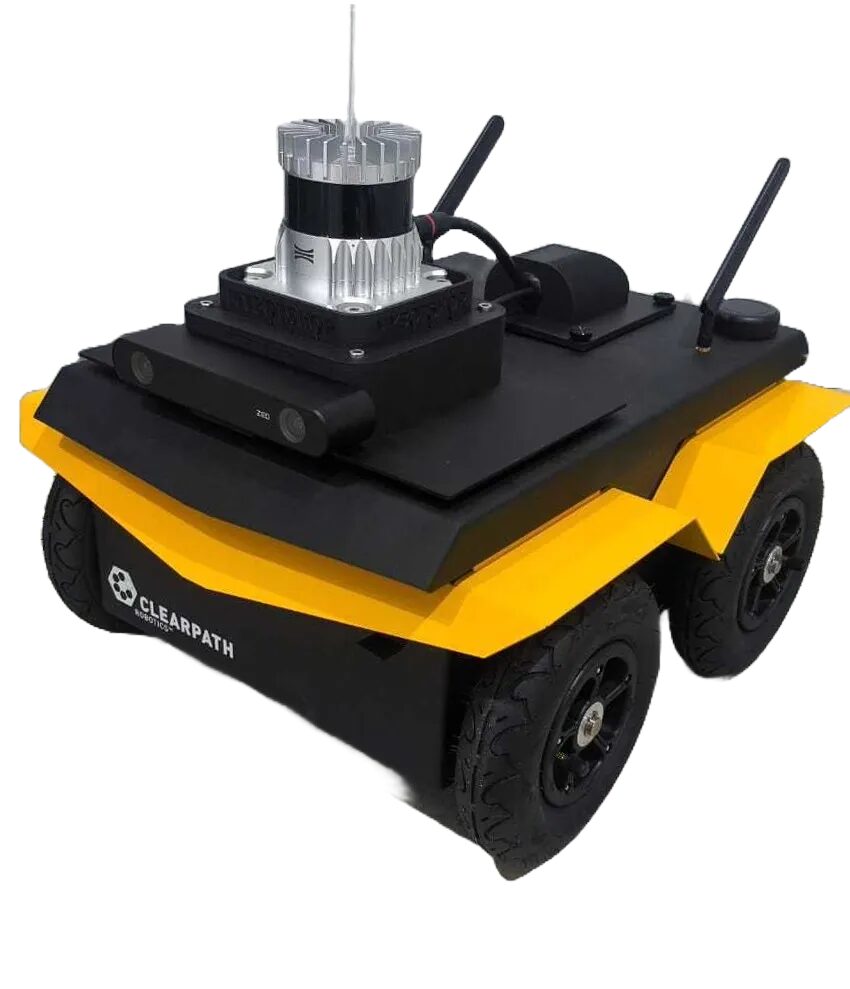
Jackal AAC
Robosense RS-LiDAR-M1, Fixposition Vision-RTK2 (GNSS/INS) and an Intel RealSense D455 depth camera for multi-modal perception research.
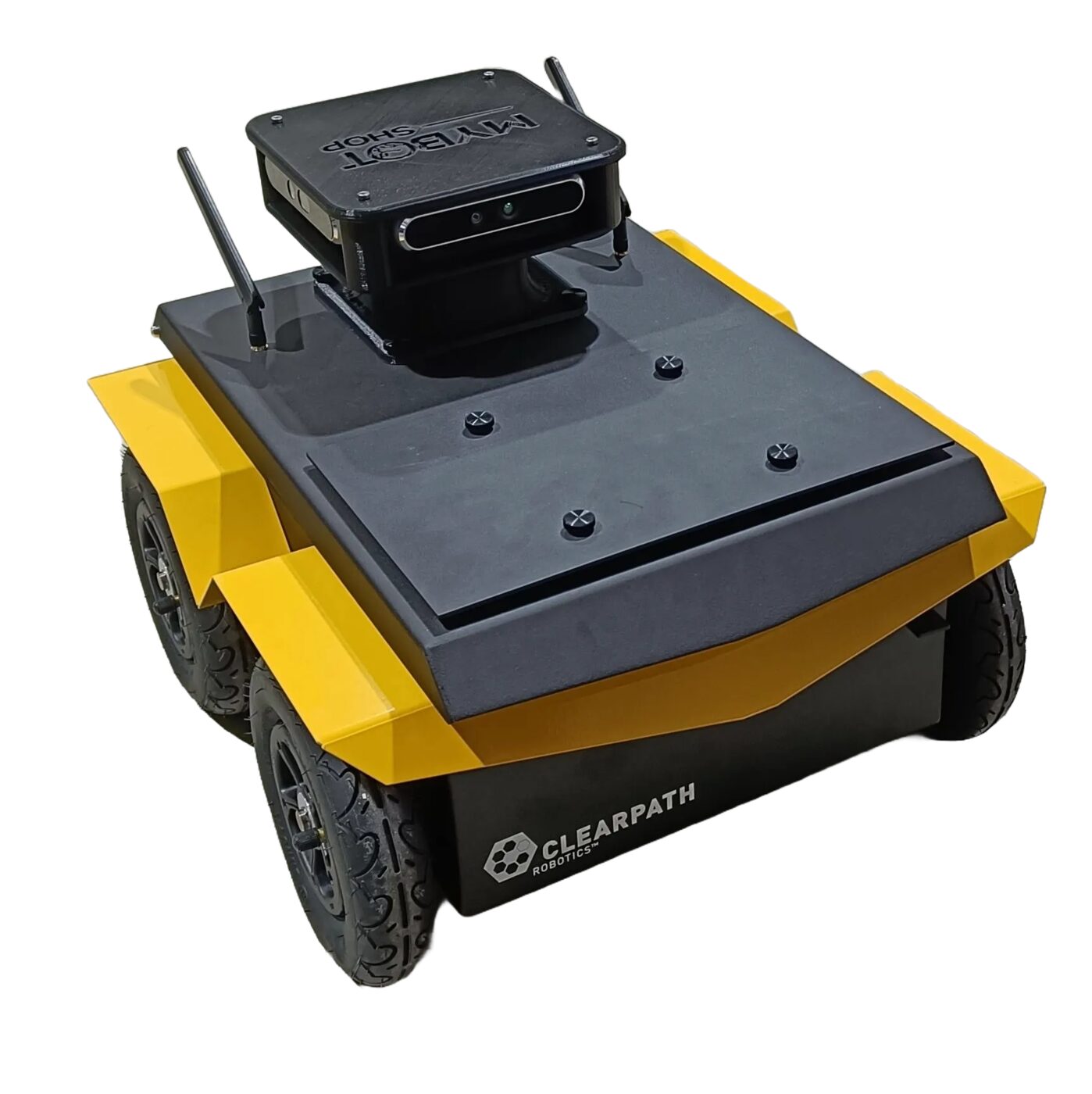
Jackal MGB
ZED 2i stereo camera for depth perception and visual SLAM, on the newer Jazzy-based Clearpath driver stack.
Jackal RS
No separate sensor datasheet is published for this SKU on the docs site — its name and depth-image references elsewhere on the site suggest a RealSense-equipped configuration.
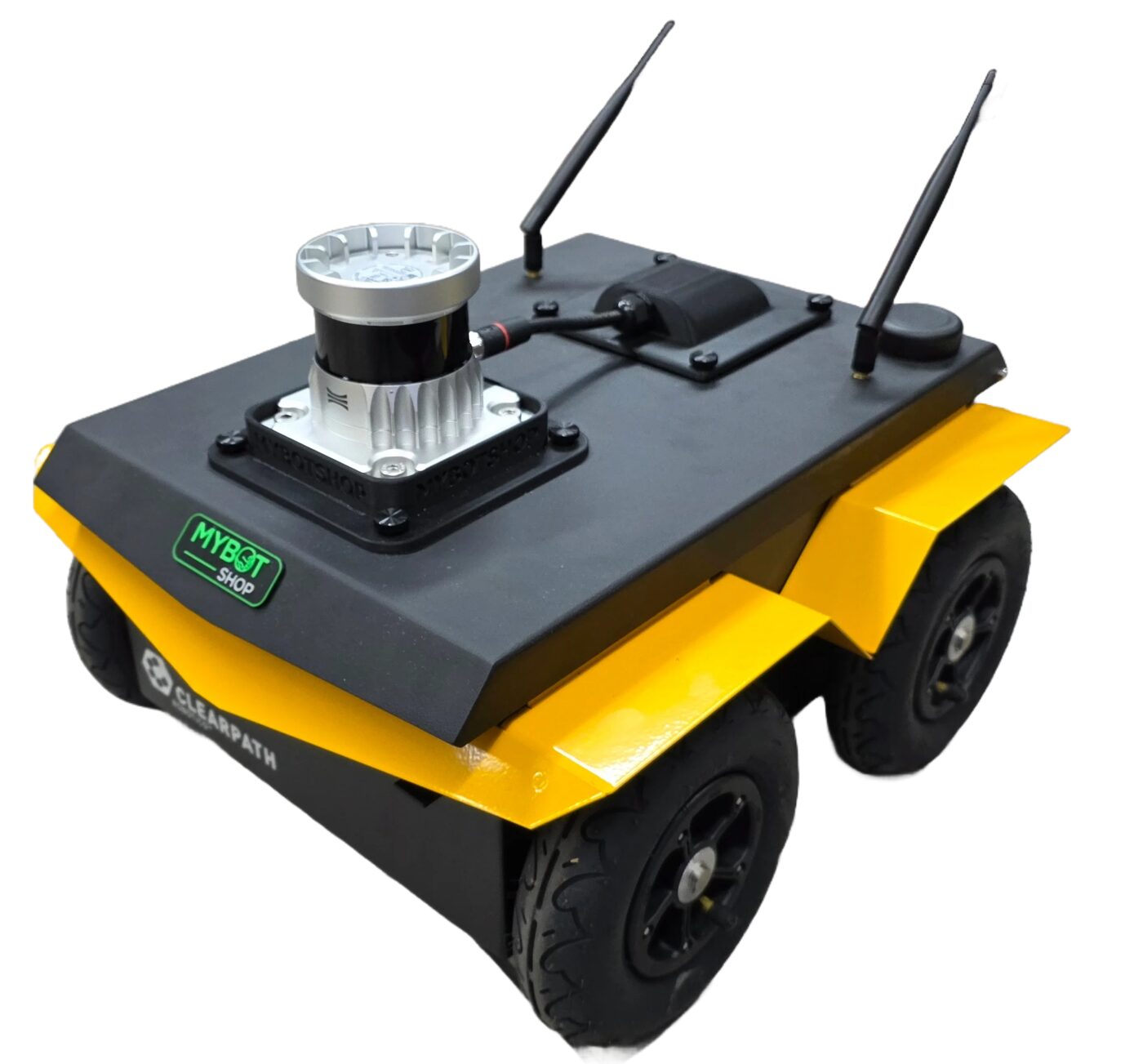
Jackal SUL
Ouster LiDAR on the Jazzy stack — the only SKU with its own published ROS 2 package reference (jkl_description, jkl_gazebo, jkl_navigation, jkl_3d_slam, jkl_viz) and a dedicated debugging-tools guide.
Every variant carries the same Autonomous Mobile Robot Safety Guidelines (work area, electrical, navigation, emergency response, data security, human interaction and residual risks) — full text in the PDF manual.
Sensors, navigation & visualization
The Jackal drivers, set up by MYBOTSHOP, live in the ros2_ws workspace — package names shift slightly between distributions, but the shape of the stack is the same across all five SKUs.
Auxiliary Sensors
Ouster LiDAR and ZED2i camera drivers auto-start with the system launch file, and can also be launched independently for component-level checking. The ZED2i uses the onboard PC's Nvidia GPU.
Odom Navigation
Basic navigation in the robot's own odometry frame, no map required — the fastest way to get the Jackal moving under waypoint or 2D-goal control.
Digital Twin (RViz2)
A live RViz2 model of the Jackal for visualizing joint state, sensor data and navigation costmaps without touching the physical robot.
Simulation
Gazebo Fortress simulation on the Jazzy-based SKUs (MGB, SUL); Foxy and Humble ship Gazebo Classic support instead.
Teleoperation (Keyboard)
The standard teleop_twist_keyboard node, remapped onto the robot's namespaced cmd_vel topic — a laptop-only fallback if the joystick isn't available.
Debugging
Check the TF tree with rqt_gui, re-view the URDF live on the robot, or restart the Clearpath driver services if a sensor drops out.
Building and using a map
Map-based navigation is a three-step workflow shared by every SKU — drive around with the joystick to build the map once, then reuse it.
1. Create the map
Launch SLAM (slam.launch.py), drive the Jackal around with the joystick, then export the map with nav2_map_server map_saver_cli.
2. Rebuild packages
Rebuild the workspace so the new map installs into the install folder: colcon build --symlink-install, then re-source it.
3. Load & navigate
Launch map_navi.launch.py and give a 2D pose estimate (Humble/Foxy) or nav goal in RViz2 to start autonomous map navigation.
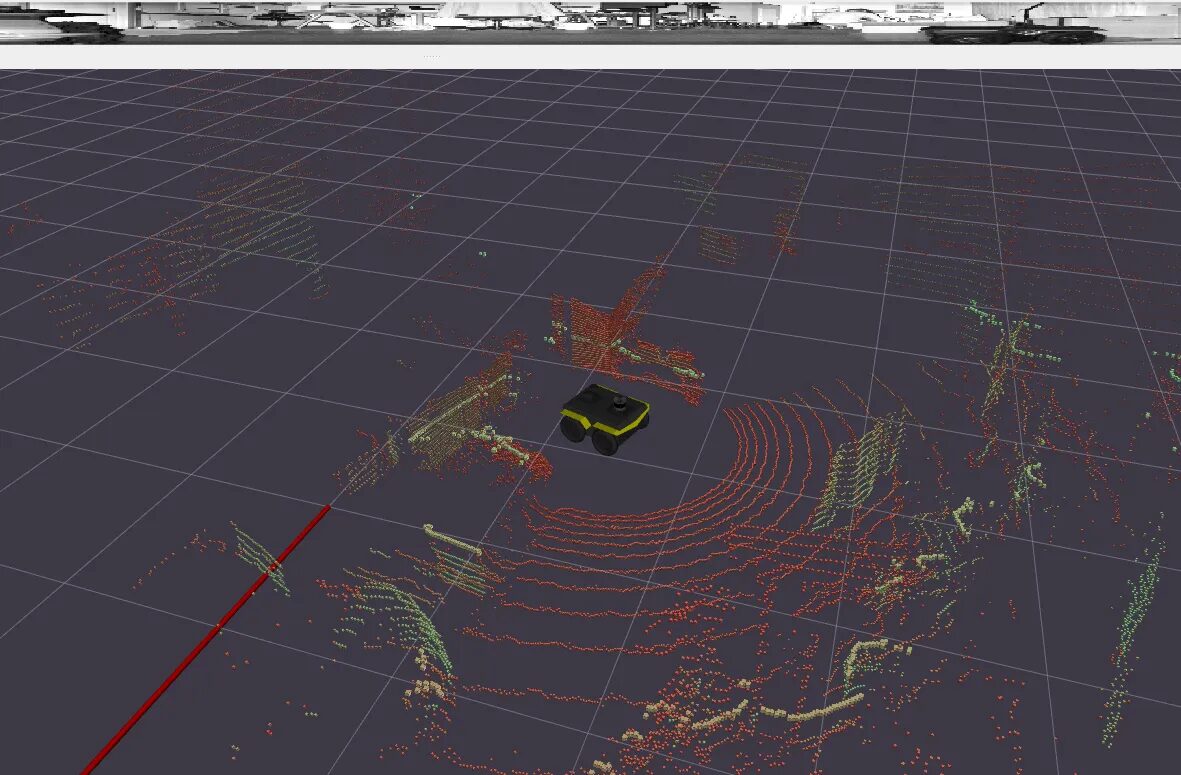
Digital twin (RViz2) — ros2 launch jkl_viz view_robot.launch.py
Manuals, ROS 2 docs & robot description
Everything needed to operate the Jackal safely, develop against its ROS 2 stack, or bring its model into your own tooling.
Complete Source Repo
The complete ROS 2 source workspace for MBS Jackal — every ROS 2 package, launch file and driver node, built and maintained by MYBOTSHOP. Confidential — shared under NDA with named customers; sign in or request access below.
Official Clearpath Jackal Docs
The manufacturer's own Jackal documentation and tutorials, covering all three supported ROS 2 distributions in full depth, plus the upstream jackal GitHub organization.
MYBOTSHOP Jackal User Manual
A single self-contained manual covering everything on this page in depth: network/SSH quick start, battery care, all five hardware variants, the full ROS 2 software reference across Foxy/Humble/Jazzy, and the platform's safety guidelines.
Download PDFJackal Robot Description (URDF)
MYBOTSHOP's jkl_description package: the accessory sensor-mount xacros and meshes for the AAC/MGB/SUL camera, LiDAR and GNSS kits, plus package.xml and the robot-view launch file. It layers on top of Clearpath's own clearpath_platform_description package for the base J100 chassis and wheels — the same combination rendered live in the viewer above.
Looking for the Robosense, Fixposition or ZED2i sensor SDKs, or the full Clearpath platform source? Ask us directly.
If something goes wrong
Two steps, in order — the forum first for fast community and staff triage, then a direct ticket if it needs to go further.
MYBOTSHOP Forum
Open a topic on the MYBOTSHOP Forum for community and staff triage — most software questions and known issues get resolved here first. For code-level bugs, GitHub Issues, StackOverflow and Answers-ROS are also in play.
Direct ticket & RMA
If it's unresolved, email support@mybotshop.de with the problem description and what's already been tried. For hardware issues we'll issue an RMA number and return instructions — returns without an RMA number are auto-rejected.
RMA returns ship to: MYBOTSHOP GmbH, Willy-Messerschmitt-Strasse 12, 50126 Bergheim, Germany.
We're here for the whole deployment
A fleet rollout, a new sensor variant, or a question about a specific ROS 2 package — the MYBOTSHOP team can help.
support@mybotshop.de